
Vaultwarden fails to start after update – DB migration error (SSO)
-
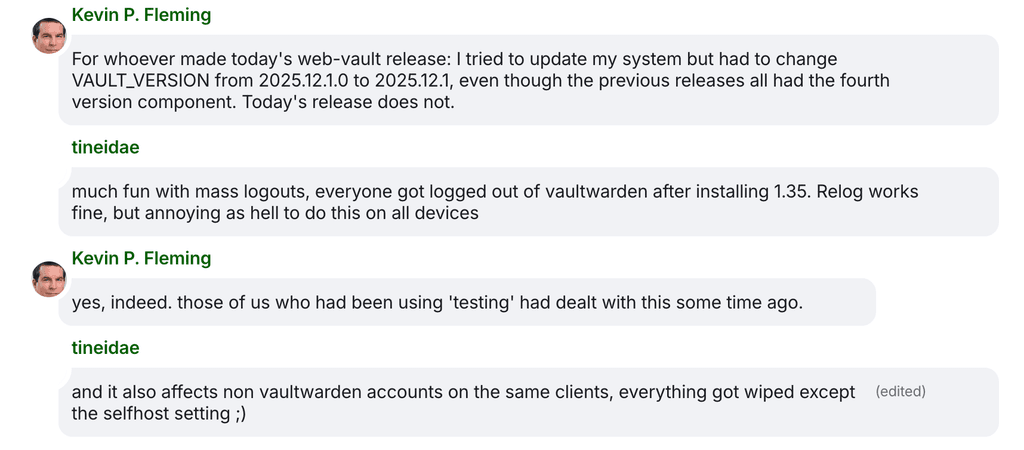
Looks like it's a larger upgrade with various issues
-
-
-
@james said in Vaultwarden fails to start after update – DB migration error (SSO):
Hello @archos
I think, I have the same issue.
This is the log:[2025-12-29 19:23:43.075][panic][ERROR] thread 'main' panicked at 'Error running migrations: QueryError(DieselMigrationName { name: "2024-03-06-170000_add_sso_users", version: MigrationVersion("20240306170000") }, DatabaseError(Unknown, "Referencing column 'user_uuid' and referenced column 'uuid' in foreign key constraint 'sso_users_ibfk_1' are incompatible."))': src/db/mod.rs:505And seems to be already reported upstream: https://github.com/dani-garcia/vaultwarden/issues/6611
EDIT:
I followed the guided instructions and was able to fix it => https://github.com/dani-garcia/vaultwarden/wiki/Using-the-MariaDB-(MySQL)-Backend#foreign-key-errors-collation-and-charsetbe sure to replace
"vaultwarden"in the SQL querries with your cloudron database name.I experienced the exact same issue when upgrading to the latest version. I managed to resolve it following @james's suggestion.
Here is a recap of the step-by-step process I executed, which might help others:
-
- Enter Recovery Mode
Go to the Cloudron dashboard and enable Recovery Mode for your Vaultwarden application.
- Enter Recovery Mode
-
- Access the MySQL Database
Open the application Terminal and click the MySQL button to access the database console..
- Access the MySQL Database
-
- Identify the Vaultwarden Database Name
Run the following command to see the list of databases:
- Identify the Vaultwarden Database Name
SHOW DATABASES;Note the database name that appears (it is usually a random string like 9121d...). You will need this for the next steps.
-
- Change the Database Charset
Replace YourDatabaseVaultwarden in the command below with the actual database name retrieved in Step 3, then run:
ALTER DATABASE `YourDatabaseVaultwarden` CHARACTER SET utf8mb4 COLLATE utf8mb4_unicode_ci;-
- Generate Table Modification Commands
Run this query to generate the specific ALTER TABLE commands for your existing tables:
- Generate Table Modification Commands
SELECT CONCAT('ALTER TABLE `', TABLE_NAME,'` CONVERT TO CHARACTER SET utf8mb4 COLLATE utf8mb4_unicode_ci;')
FROM INFORMATION_SCHEMA.TABLES
WHERE TABLE_SCHEMA="YourDatabaseVaultwarden"
AND TABLE_TYPE="BASE TABLE";
Copy the output generated by this command. You can paste this list into ChatGPT or Gemini and ask it to format it for the next step (wrapping it between the foreign key check commands).
-
- Execute the Final Fix
The final command block should follow this structure:
- Execute the Final Fix
SET foreign_key_checks=0;
-- Copy/Paste the output from above here
SET foreign_key_checks=1;
If you are unsure about the formatting, I simply copied the raw table list from the terminal in Step 5 and asked an AI to format it into valid MySQL syntax using the structure above.
Here is an example of what the final command looks like (Note: Do not copy-paste the specific table list below; use the one generated from your own database in Step 5, as your tables might differ):
SET foreign_key_checks=0;
ALTER TABLE `__diesel_schema_migrations` CONVERT TO CHARACTER SET utf8mb4 COLLATE utf8mb4_unicode_ci;
ALTER TABLE `attachments` CONVERT TO CHARACTER SET utf8mb4 COLLATE utf8mb4_unicode_ci;
ALTER TABLE `ciphers_collections` CONVERT TO CHARACTER SET utf8mb4 COLLATE utf8mb4_unicode_ci;
ALTER TABLE `ciphers` CONVERT TO CHARACTER SET utf8mb4 COLLATE utf8mb4_unicode_ci;
ALTER TABLE `collections` CONVERT TO CHARACTER SET utf8mb4 COLLATE utf8mb4_unicode_ci;
ALTER TABLE `devices` CONVERT TO CHARACTER SET utf8mb4 COLLATE utf8mb4_unicode_ci;
ALTER TABLE `emergency_access` CONVERT TO CHARACTER SET utf8mb4 COLLATE utf8mb4_unicode_ci;
ALTER TABLE `favorites` CONVERT TO CHARACTER SET utf8mb4 COLLATE utf8mb4_unicode_ci;
ALTER TABLE `folders_ciphers` CONVERT TO CHARACTER SET utf8mb4 COLLATE utf8mb4_unicode_ci;
ALTER TABLE `folders` CONVERT TO CHARACTER SET utf8mb4 COLLATE utf8mb4_unicode_ci;
ALTER TABLE `invitations` CONVERT TO CHARACTER SET utf8mb4 COLLATE utf8mb4_unicode_ci;
ALTER TABLE `org_policies` CONVERT TO CHARACTER SET utf8mb4 COLLATE utf8mb4_unicode_ci;
ALTER TABLE `organizations` CONVERT TO CHARACTER SET utf8mb4 COLLATE utf8mb4_unicode_ci;
ALTER TABLE `sends` CONVERT TO CHARACTER SET utf8mb4 COLLATE utf8mb4_unicode_ci;
ALTER TABLE `twofactor_incomplete` CONVERT TO CHARACTER SET utf8mb4 COLLATE utf8mb4_unicode_ci;
ALTER TABLE `twofactor` CONVERT TO CHARACTER SET utf8mb4 COLLATE utf8mb4_unicode_ci;
ALTER TABLE `users_collections` CONVERT TO CHARACTER SET utf8mb4 COLLATE utf8mb4_unicode_ci;
ALTER TABLE `users_organizations` CONVERT TO CHARACTER SET utf8mb4 COLLATE utf8mb4_unicode_ci;
ALTER TABLE `users` CONVERT TO CHARACTER SET utf8mb4 COLLATE utf8mb4_unicode_ci;
SET foreign_key_checks=1;
Once you have adapted the command to your specific tables, execute it in the MySQL terminal.
Finally, disable Recovery Mode and restart your Vaultwarden app. Hopefully, this serves as a solution for you as well.
Apologies if there are any technical inaccuracies; I utilized AI to guide me through this solution, and thankfully, it worked perfectly.
Thanks,
Regards -
-
@james said in Vaultwarden fails to start after update – DB migration error (SSO):
Hello @archos
I think, I have the same issue.
This is the log:[2025-12-29 19:23:43.075][panic][ERROR] thread 'main' panicked at 'Error running migrations: QueryError(DieselMigrationName { name: "2024-03-06-170000_add_sso_users", version: MigrationVersion("20240306170000") }, DatabaseError(Unknown, "Referencing column 'user_uuid' and referenced column 'uuid' in foreign key constraint 'sso_users_ibfk_1' are incompatible."))': src/db/mod.rs:505And seems to be already reported upstream: https://github.com/dani-garcia/vaultwarden/issues/6611
EDIT:
I followed the guided instructions and was able to fix it => https://github.com/dani-garcia/vaultwarden/wiki/Using-the-MariaDB-(MySQL)-Backend#foreign-key-errors-collation-and-charsetbe sure to replace
"vaultwarden"in the SQL querries with your cloudron database name.I experienced the exact same issue when upgrading to the latest version. I managed to resolve it following @james's suggestion.
Here is a recap of the step-by-step process I executed, which might help others:
-
- Enter Recovery Mode
Go to the Cloudron dashboard and enable Recovery Mode for your Vaultwarden application.
- Enter Recovery Mode
-
- Access the MySQL Database
Open the application Terminal and click the MySQL button to access the database console..
- Access the MySQL Database
-
- Identify the Vaultwarden Database Name
Run the following command to see the list of databases:
- Identify the Vaultwarden Database Name
SHOW DATABASES;Note the database name that appears (it is usually a random string like 9121d...). You will need this for the next steps.
-
- Change the Database Charset
Replace YourDatabaseVaultwarden in the command below with the actual database name retrieved in Step 3, then run:
ALTER DATABASE `YourDatabaseVaultwarden` CHARACTER SET utf8mb4 COLLATE utf8mb4_unicode_ci;-
- Generate Table Modification Commands
Run this query to generate the specific ALTER TABLE commands for your existing tables:
- Generate Table Modification Commands
SELECT CONCAT('ALTER TABLE `', TABLE_NAME,'` CONVERT TO CHARACTER SET utf8mb4 COLLATE utf8mb4_unicode_ci;')
FROM INFORMATION_SCHEMA.TABLES
WHERE TABLE_SCHEMA="YourDatabaseVaultwarden"
AND TABLE_TYPE="BASE TABLE";
Copy the output generated by this command. You can paste this list into ChatGPT or Gemini and ask it to format it for the next step (wrapping it between the foreign key check commands).
-
- Execute the Final Fix
The final command block should follow this structure:
- Execute the Final Fix
SET foreign_key_checks=0;
-- Copy/Paste the output from above here
SET foreign_key_checks=1;
If you are unsure about the formatting, I simply copied the raw table list from the terminal in Step 5 and asked an AI to format it into valid MySQL syntax using the structure above.
Here is an example of what the final command looks like (Note: Do not copy-paste the specific table list below; use the one generated from your own database in Step 5, as your tables might differ):
SET foreign_key_checks=0;
ALTER TABLE `__diesel_schema_migrations` CONVERT TO CHARACTER SET utf8mb4 COLLATE utf8mb4_unicode_ci;
ALTER TABLE `attachments` CONVERT TO CHARACTER SET utf8mb4 COLLATE utf8mb4_unicode_ci;
ALTER TABLE `ciphers_collections` CONVERT TO CHARACTER SET utf8mb4 COLLATE utf8mb4_unicode_ci;
ALTER TABLE `ciphers` CONVERT TO CHARACTER SET utf8mb4 COLLATE utf8mb4_unicode_ci;
ALTER TABLE `collections` CONVERT TO CHARACTER SET utf8mb4 COLLATE utf8mb4_unicode_ci;
ALTER TABLE `devices` CONVERT TO CHARACTER SET utf8mb4 COLLATE utf8mb4_unicode_ci;
ALTER TABLE `emergency_access` CONVERT TO CHARACTER SET utf8mb4 COLLATE utf8mb4_unicode_ci;
ALTER TABLE `favorites` CONVERT TO CHARACTER SET utf8mb4 COLLATE utf8mb4_unicode_ci;
ALTER TABLE `folders_ciphers` CONVERT TO CHARACTER SET utf8mb4 COLLATE utf8mb4_unicode_ci;
ALTER TABLE `folders` CONVERT TO CHARACTER SET utf8mb4 COLLATE utf8mb4_unicode_ci;
ALTER TABLE `invitations` CONVERT TO CHARACTER SET utf8mb4 COLLATE utf8mb4_unicode_ci;
ALTER TABLE `org_policies` CONVERT TO CHARACTER SET utf8mb4 COLLATE utf8mb4_unicode_ci;
ALTER TABLE `organizations` CONVERT TO CHARACTER SET utf8mb4 COLLATE utf8mb4_unicode_ci;
ALTER TABLE `sends` CONVERT TO CHARACTER SET utf8mb4 COLLATE utf8mb4_unicode_ci;
ALTER TABLE `twofactor_incomplete` CONVERT TO CHARACTER SET utf8mb4 COLLATE utf8mb4_unicode_ci;
ALTER TABLE `twofactor` CONVERT TO CHARACTER SET utf8mb4 COLLATE utf8mb4_unicode_ci;
ALTER TABLE `users_collections` CONVERT TO CHARACTER SET utf8mb4 COLLATE utf8mb4_unicode_ci;
ALTER TABLE `users_organizations` CONVERT TO CHARACTER SET utf8mb4 COLLATE utf8mb4_unicode_ci;
ALTER TABLE `users` CONVERT TO CHARACTER SET utf8mb4 COLLATE utf8mb4_unicode_ci;
SET foreign_key_checks=1;
Once you have adapted the command to your specific tables, execute it in the MySQL terminal.
Finally, disable Recovery Mode and restart your Vaultwarden app. Hopefully, this serves as a solution for you as well.
Apologies if there are any technical inaccuracies; I utilized AI to guide me through this solution, and thankfully, it worked perfectly.
Thanks,
Regards -
-
Description
Aplication not responding. Investigated logs show database migration error.
Steps to reproduce
Vaultwarden App updated to 1.23.0
Logs
2025-12-30T08:56:20Z /--------------------------------------------------------------------\
2025-12-30T08:56:20Z 0: vaultwarden::init_logging::{{closure}}
2025-12-30T08:56:20Z 10: std::sys::backtrace::__rust_begin_short_backtrace
2025-12-30T08:56:20Z 11: main
2025-12-30T08:56:20Z 12: <unknown>
2025-12-30T08:56:20Z 13: __libc_start_main
2025-12-30T08:56:20Z 14: _start
2025-12-30T08:56:20Z 1: std::panicking::panic_with_hook
2025-12-30T08:56:20Z 2: std::panicking::panic_handler::{{closure}}
2025-12-30T08:56:20Z 3: std::sys::backtrace::__rust_end_short_backtrace
2025-12-30T08:56:20Z 4: __rustc::rust_begin_unwind
2025-12-30T08:56:20Z 5: core::panicking::panic_fmt
2025-12-30T08:56:20Z 6: core::result::unwrap_failed
2025-12-30T08:56:20Z 7: vaultwarden::db::DbPool::from_config
2025-12-30T08:56:20Z 8: vaultwarden::main::{{closure}}
2025-12-30T08:56:20Z 9: vaultwarden::main
2025-12-30T08:56:20Z => Exporting env vars expected by Vaultwarden
2025-12-30T08:56:20Z => Starting Bitwarden
2025-12-30T08:56:20Z Please generate a secure Argon2 PHC string by using `vaultwarden hash` or `argon2`.
2025-12-30T08:56:20Z See: https://github.com/dani-garcia/vaultwarden/wiki/Enabling-admin-page#secure-the-admin_token
2025-12-30T08:56:20Z [2025-12-30 08:56:20.876][panic][ERROR] thread 'main' panicked at 'Error running migrations: QueryError(DieselMigrationName { name: "2024-03-06-170000_add_sso_users", version: MigrationVersion("20240306170000") }, DatabaseError(Unknown, "Referencing column 'user_uuid' and referenced column 'uuid' in foreign key constraint 'sso_users_ibfk_1' are incompatible."))': src/db/mod.rs:505
Troubleshooting Already Performed
Restored 1.22.2 application Backup restored functionality
System Details
Generate Diagnostics Data
Diagnostic Data sent to support@cloudron.io
Cloudron Version
9.0.15Ubuntu Version
Distributor ID:	Ubuntu
Description:	Ubuntu 24.04.3 LTS
Release:	24.04
Codename:	noble
Cloudron installation method
- Manual with
./cloudron-setup
Output of
cloudron-support --troubleshootVendor: netcup Product: KVM Server Linux: 6.8.0-90-generic Ubuntu: noble 24.04 Execution environment: kvm Processor: AMD EPYC 9645 96-Core Processor BIOS pc-i440fx-9.2 CPU @ 2.0GHz x 8 RAM: 16370004KB Disk: /dev/vda1 425G [OK] node version is correct [OK] IPv6 is enabled and public IPv6 address is working [OK] docker is running [OK] docker version is correct [OK] MySQL is running [OK] nginx is running [OK] dashboard cert is valid [OK] dashboard is reachable via loopback [OK] No pending database migrations [OK] Service 'mysql' is running and healthy [OK] Service 'postgresql' is running and healthy [OK] Service 'mongodb' is running and healthy [OK] Service 'mail' is running and healthy [OK] Service 'graphite' is running and healthy [OK] Service 'sftp' is running and healthy [OK] box v9.0.15 is running [OK] netplan is good [OK] DNS is resolving via systemd-resolved [OK] Dashboard is reachable via domain name [WARN] Domain serenichron.agency expiry check skipped because whois does not have this information [OK] unbound is running - Manual with
-
-
F fbartels referenced this topic on
-
-
After updating the Vaultwarden app on Cloudron, the application never reaches the Running state and gets stuck in a start / restart loop.
The app logs show the following error:
Dec 29 18:21:11 9: vaultwarden::main
Dec 29 18:21:11 [2025-12-29 17:21:11.256][panic][ERROR] thread 'main' panicked at 'Error running migrations: QueryError(DieselMigrationName { name: "2024-03-06-170000_add_sso_users", version: MigrationVersion("20240306170000") }, DatabaseError(Unknown, "Referencing column 'user_uuid' and referenced column 'uuid' in foreign key constraint 'sso_users_ibfk_1' are incompatible."))': src/db/mod.rs:505
Dec 29 18:21:11 [INFO] Using saved config from `/app/data/config.json` for configuration.
Dec 29 18:21:11 [WARNING] Please use the admin panel to make changes to them:
Dec 29 18:21:11 [WARNING] SIGNUPS_ALLOWED, INVITATIONS_ALLOWED, YUBICO_CLIENT_ID, YUBICO_SECRET_KEY
Dec 29 18:21:11 [WARNING] The following environment variables are being overridden by the config.json file.
Dec 29 18:21:14 2025-12-29T18:21:14+01:00
Dec 29 18:21:14 2025-12-29T18:21:14+01:00
Dec 29 18:21:14 2025-12-29T18:21:14+01:00
Dec 29 18:21:14 2025-12-29T18:21:14+01:00
Dec 29 18:21:14 /--------------------------------------------------------------------\
Dec 29 18:21:14 0: vaultwarden::init_logging::{{closure}}
Dec 29 18:21:14 10: std::sys::backtrace::__rust_begin_short_backtrace
Dec 29 18:21:14 11: main
Dec 29 18:21:14 12: <unknown>
Dec 29 18:21:14 13: __libc_start_main
Dec 29 18:21:14 14: _start
Dec 29 18:21:14 1: std::panicking::panic_with_hook
Dec 29 18:21:14 2: std::panicking::panic_handler::{{closure}}
Dec 29 18:21:14 3: std::sys::backtrace::__rust_end_short_backtrace
It looks like the migration related to SSO fails, but I’m not sure what the correct or recommended way to handle this situation is.
Has anyone encountered this issue?
Is there a supported way to fix this without manually modifying the database?Thanks for any pointers.
@archos said in Vaultwarden fails to start after update – DB migration error (SSO):
After updating the Vaultwarden app on Cloudron
From/ to which version?
-
@archos said in Vaultwarden fails to start after update – DB migration error (SSO):
After updating the Vaultwarden app on Cloudron
From/ to which version?
-
 J james has marked this topic as solved on
-
Hello @jdaviescoates
From version Cloudron package version1.22.2=> Vaultwarden Version1.34.3to Cloudron package version1.23.0=> Vaultwarden Version1.35.0 -
-
@james OK, thanks. Looks like that is the pending update I have. Is there anyway to avoid having to do the fix above post update? Might another Cloudron package be released that has the fix?
Hello @jdaviescoates
@jdaviescoates said in Vaultwarden fails to start after update – DB migration error (SSO):
Might another Cloudron package be released that has the fix?
A fresh Vaultwarden installation will not have this issue.
About including a fix within the package.
We will have to look into it. -
Hello @vaultwarden users
Since users have voiced their concerns about manually editing the database I have created a bash script that does it for you.
Please follow these steps if you have this issue:- create an app backup of your @vaultwarden Cloudron app
- put the erroring @vaultwarden app in recovery mode
- open the File Manager of your @vaultwarden app and create a
fix_db.shfile - copy and paste the following script into the just created
fix_db.shfile:#!/bin/bash echo "=> Checking if DEFAULT_CHARACTER_SET_NAME and DEFAULT_COLLATION_NAME are set to utf8mb4 and utf8mb4_unicode_ci" CURRENT_DEFAULT_CHARACTER_SET_NAME=$(mysql --silent --skip-column-names --user=${CLOUDRON_MYSQL_USERNAME} --password=${CLOUDRON_MYSQL_PASSWORD} --host=${CLOUDRON_MYSQL_HOST} ${CLOUDRON_MYSQL_DATABASE} -e "SELECT DEFAULT_CHARACTER_SET_NAME FROM information_schema.SCHEMATA WHERE SCHEMA_NAME = '${CLOUDRON_MYSQL_DATABASE}';" 2>/dev/null) CURRENT_DEFAULT_COLLATION_NAME=$(mysql --silent --skip-column-names --user=${CLOUDRON_MYSQL_USERNAME} --password=${CLOUDRON_MYSQL_PASSWORD} --host=${CLOUDRON_MYSQL_HOST} ${CLOUDRON_MYSQL_DATABASE} -e "SELECT DEFAULT_COLLATION_NAME FROM information_schema.SCHEMATA WHERE SCHEMA_NAME = '${CLOUDRON_MYSQL_DATABASE}';" 2>/dev/null) FIX_NEEDED=0 if [ "${CURRENT_DEFAULT_CHARACTER_SET_NAME}" != "utf8mb4" ] || [ "${CURRENT_DEFAULT_COLLATION_NAME}" != "utf8mb4_unicode_ci" ]; then echo "=> DEFAULT_CHARACTER_SET_NAME or DEFAULT_COLLATION_NAME is not set to utf8mb4 or utf8mb4_unicode_ci." echo "==> Current values are: DEFAULT_CHARACTER_SET_NAME=${CURRENT_DEFAULT_CHARACTER_SET_NAME}, DEFAULT_COLLATION_NAME=${CURRENT_DEFAULT_COLLATION_NAME}" FIX_NEEDED=1 else echo "=> DEFAULT_CHARACTER_SET_NAME is ${CURRENT_DEFAULT_CHARACTER_SET_NAME} and DEFAULT_COLLATION_NAME is ${CURRENT_DEFAULT_COLLATION_NAME}" echo "=> Nothing to do - quitting." FIX_NEEDED=0 exit 0 fi if [ ${FIX_NEEDED} -eq 1 ]; then read -p "Have you created a backup of your Cloudron Vaultwarden app? (y/N): " yn case $yn in [Yy]* ) echo "=> Setting database character set and collation to utf8mb4 and utf8mb4_unicode_ci." mysql --user=${CLOUDRON_MYSQL_USERNAME} --password=${CLOUDRON_MYSQL_PASSWORD} --host=${CLOUDRON_MYSQL_HOST} ${CLOUDRON_MYSQL_DATABASE} -e "ALTER DATABASE \`${CLOUDRON_MYSQL_DATABASE}\` CHARACTER SET utf8mb4 COLLATE utf8mb4_unicode_ci;" 2>/dev/null echo "=> Converting all tables to character set utf8mb4 and collation utf8mb4_unicode_ci." mysql --silent --skip-column-names \ --user="${CLOUDRON_MYSQL_USERNAME}" \ --password="${CLOUDRON_MYSQL_PASSWORD}" \ --host="${CLOUDRON_MYSQL_HOST}" \ "${CLOUDRON_MYSQL_DATABASE}" \ -e "SELECT CONCAT('ALTER TABLE \`', TABLE_NAME,'\` CONVERT TO CHARACTER SET utf8mb4 COLLATE utf8mb4_unicode_ci;') AS CharSetConvert FROM INFORMATION_SCHEMA.TABLES WHERE TABLE_SCHEMA='${CLOUDRON_MYSQL_DATABASE}' AND TABLE_TYPE=\"BASE TABLE\";" 2>/dev/null | while read -r sql_command; do echo "==> Executing: ${sql_command}" mysql --user=${CLOUDRON_MYSQL_USERNAME} --password=${CLOUDRON_MYSQL_PASSWORD} --host=${CLOUDRON_MYSQL_HOST} ${CLOUDRON_MYSQL_DATABASE} -e "SET foreign_key_checks=0; ${sql_command} SET foreign_key_checks=1;" 2>/dev/null done ;; [Nn]* ) echo "=> Please create a backup of your database before proceeding with the fix. Exiting." exit 1 ;; * ) echo "=> Invalid response. Please answer with y or n. Exiting." exit 1 ;; esac fi - open the Web Terminal of your @vaultwarden Cloudron app
- execute the following command:
bash /app/data/fix_db.sh - Execute the following command to start @vaultwarden:
/app/pkg/start.sh - Validate if your @vaultwarden is now working correctly
- If validated working, you can delete the
fix_db.shfile and disable the recovery mode of your @vaultwarden Cloudron app
Note:
If there are issues with the copy and paste from Windows devices apperent by error messages likeline 2: $'\r': command not found, please run the following command to fix the script:sed -i 's/\r$//g' /app/data/fix_db.sh
If you run into any issues, copy the output of the terminal, post it here and restore your app from the backup created.
-
-
Hello @vaultwarden users
Since users have voiced their concerns about manually editing the database I have created a bash script that does it for you.
Please follow these steps if you have this issue:- create an app backup of your @vaultwarden Cloudron app
- put the erroring @vaultwarden app in recovery mode
- open the File Manager of your @vaultwarden app and create a
fix_db.shfile - copy and paste the following script into the just created
fix_db.shfile:#!/bin/bash echo "=> Checking if DEFAULT_CHARACTER_SET_NAME and DEFAULT_COLLATION_NAME are set to utf8mb4 and utf8mb4_unicode_ci" CURRENT_DEFAULT_CHARACTER_SET_NAME=$(mysql --silent --skip-column-names --user=${CLOUDRON_MYSQL_USERNAME} --password=${CLOUDRON_MYSQL_PASSWORD} --host=${CLOUDRON_MYSQL_HOST} ${CLOUDRON_MYSQL_DATABASE} -e "SELECT DEFAULT_CHARACTER_SET_NAME FROM information_schema.SCHEMATA WHERE SCHEMA_NAME = '${CLOUDRON_MYSQL_DATABASE}';" 2>/dev/null) CURRENT_DEFAULT_COLLATION_NAME=$(mysql --silent --skip-column-names --user=${CLOUDRON_MYSQL_USERNAME} --password=${CLOUDRON_MYSQL_PASSWORD} --host=${CLOUDRON_MYSQL_HOST} ${CLOUDRON_MYSQL_DATABASE} -e "SELECT DEFAULT_COLLATION_NAME FROM information_schema.SCHEMATA WHERE SCHEMA_NAME = '${CLOUDRON_MYSQL_DATABASE}';" 2>/dev/null) FIX_NEEDED=0 if [ "${CURRENT_DEFAULT_CHARACTER_SET_NAME}" != "utf8mb4" ] || [ "${CURRENT_DEFAULT_COLLATION_NAME}" != "utf8mb4_unicode_ci" ]; then echo "=> DEFAULT_CHARACTER_SET_NAME or DEFAULT_COLLATION_NAME is not set to utf8mb4 or utf8mb4_unicode_ci." echo "==> Current values are: DEFAULT_CHARACTER_SET_NAME=${CURRENT_DEFAULT_CHARACTER_SET_NAME}, DEFAULT_COLLATION_NAME=${CURRENT_DEFAULT_COLLATION_NAME}" FIX_NEEDED=1 else echo "=> DEFAULT_CHARACTER_SET_NAME is ${CURRENT_DEFAULT_CHARACTER_SET_NAME} and DEFAULT_COLLATION_NAME is ${CURRENT_DEFAULT_COLLATION_NAME}" echo "=> Nothing to do - quitting." FIX_NEEDED=0 exit 0 fi if [ ${FIX_NEEDED} -eq 1 ]; then read -p "Have you created a backup of your Cloudron Vaultwarden app? (y/N): " yn case $yn in [Yy]* ) echo "=> Setting database character set and collation to utf8mb4 and utf8mb4_unicode_ci." mysql --user=${CLOUDRON_MYSQL_USERNAME} --password=${CLOUDRON_MYSQL_PASSWORD} --host=${CLOUDRON_MYSQL_HOST} ${CLOUDRON_MYSQL_DATABASE} -e "ALTER DATABASE \`${CLOUDRON_MYSQL_DATABASE}\` CHARACTER SET utf8mb4 COLLATE utf8mb4_unicode_ci;" 2>/dev/null echo "=> Converting all tables to character set utf8mb4 and collation utf8mb4_unicode_ci." mysql --silent --skip-column-names \ --user="${CLOUDRON_MYSQL_USERNAME}" \ --password="${CLOUDRON_MYSQL_PASSWORD}" \ --host="${CLOUDRON_MYSQL_HOST}" \ "${CLOUDRON_MYSQL_DATABASE}" \ -e "SELECT CONCAT('ALTER TABLE \`', TABLE_NAME,'\` CONVERT TO CHARACTER SET utf8mb4 COLLATE utf8mb4_unicode_ci;') AS CharSetConvert FROM INFORMATION_SCHEMA.TABLES WHERE TABLE_SCHEMA='${CLOUDRON_MYSQL_DATABASE}' AND TABLE_TYPE=\"BASE TABLE\";" 2>/dev/null | while read -r sql_command; do echo "==> Executing: ${sql_command}" mysql --user=${CLOUDRON_MYSQL_USERNAME} --password=${CLOUDRON_MYSQL_PASSWORD} --host=${CLOUDRON_MYSQL_HOST} ${CLOUDRON_MYSQL_DATABASE} -e "SET foreign_key_checks=0; ${sql_command} SET foreign_key_checks=1;" 2>/dev/null done ;; [Nn]* ) echo "=> Please create a backup of your database before proceeding with the fix. Exiting." exit 1 ;; * ) echo "=> Invalid response. Please answer with y or n. Exiting." exit 1 ;; esac fi - open the Web Terminal of your @vaultwarden Cloudron app
- execute the following command:
bash /app/data/fix_db.sh - Execute the following command to start @vaultwarden:
/app/pkg/start.sh - Validate if your @vaultwarden is now working correctly
- If validated working, you can delete the
fix_db.shfile and disable the recovery mode of your @vaultwarden Cloudron app
Note:
If there are issues with the copy and paste from Windows devices apperent by error messages likeline 2: $'\r': command not found, please run the following command to fix the script:sed -i 's/\r$//g' /app/data/fix_db.sh
If you run into any issues, copy the output of the terminal, post it here and restore your app from the backup created.
@james this won’t fix the issue of logging everyone out though I assume?
Edit: just saw the newest update.
-
Hello @vaultwarden users
Since users have voiced their concerns about manually editing the database I have created a bash script that does it for you.
Please follow these steps if you have this issue:- create an app backup of your @vaultwarden Cloudron app
- put the erroring @vaultwarden app in recovery mode
- open the File Manager of your @vaultwarden app and create a
fix_db.shfile - copy and paste the following script into the just created
fix_db.shfile:#!/bin/bash echo "=> Checking if DEFAULT_CHARACTER_SET_NAME and DEFAULT_COLLATION_NAME are set to utf8mb4 and utf8mb4_unicode_ci" CURRENT_DEFAULT_CHARACTER_SET_NAME=$(mysql --silent --skip-column-names --user=${CLOUDRON_MYSQL_USERNAME} --password=${CLOUDRON_MYSQL_PASSWORD} --host=${CLOUDRON_MYSQL_HOST} ${CLOUDRON_MYSQL_DATABASE} -e "SELECT DEFAULT_CHARACTER_SET_NAME FROM information_schema.SCHEMATA WHERE SCHEMA_NAME = '${CLOUDRON_MYSQL_DATABASE}';" 2>/dev/null) CURRENT_DEFAULT_COLLATION_NAME=$(mysql --silent --skip-column-names --user=${CLOUDRON_MYSQL_USERNAME} --password=${CLOUDRON_MYSQL_PASSWORD} --host=${CLOUDRON_MYSQL_HOST} ${CLOUDRON_MYSQL_DATABASE} -e "SELECT DEFAULT_COLLATION_NAME FROM information_schema.SCHEMATA WHERE SCHEMA_NAME = '${CLOUDRON_MYSQL_DATABASE}';" 2>/dev/null) FIX_NEEDED=0 if [ "${CURRENT_DEFAULT_CHARACTER_SET_NAME}" != "utf8mb4" ] || [ "${CURRENT_DEFAULT_COLLATION_NAME}" != "utf8mb4_unicode_ci" ]; then echo "=> DEFAULT_CHARACTER_SET_NAME or DEFAULT_COLLATION_NAME is not set to utf8mb4 or utf8mb4_unicode_ci." echo "==> Current values are: DEFAULT_CHARACTER_SET_NAME=${CURRENT_DEFAULT_CHARACTER_SET_NAME}, DEFAULT_COLLATION_NAME=${CURRENT_DEFAULT_COLLATION_NAME}" FIX_NEEDED=1 else echo "=> DEFAULT_CHARACTER_SET_NAME is ${CURRENT_DEFAULT_CHARACTER_SET_NAME} and DEFAULT_COLLATION_NAME is ${CURRENT_DEFAULT_COLLATION_NAME}" echo "=> Nothing to do - quitting." FIX_NEEDED=0 exit 0 fi if [ ${FIX_NEEDED} -eq 1 ]; then read -p "Have you created a backup of your Cloudron Vaultwarden app? (y/N): " yn case $yn in [Yy]* ) echo "=> Setting database character set and collation to utf8mb4 and utf8mb4_unicode_ci." mysql --user=${CLOUDRON_MYSQL_USERNAME} --password=${CLOUDRON_MYSQL_PASSWORD} --host=${CLOUDRON_MYSQL_HOST} ${CLOUDRON_MYSQL_DATABASE} -e "ALTER DATABASE \`${CLOUDRON_MYSQL_DATABASE}\` CHARACTER SET utf8mb4 COLLATE utf8mb4_unicode_ci;" 2>/dev/null echo "=> Converting all tables to character set utf8mb4 and collation utf8mb4_unicode_ci." mysql --silent --skip-column-names \ --user="${CLOUDRON_MYSQL_USERNAME}" \ --password="${CLOUDRON_MYSQL_PASSWORD}" \ --host="${CLOUDRON_MYSQL_HOST}" \ "${CLOUDRON_MYSQL_DATABASE}" \ -e "SELECT CONCAT('ALTER TABLE \`', TABLE_NAME,'\` CONVERT TO CHARACTER SET utf8mb4 COLLATE utf8mb4_unicode_ci;') AS CharSetConvert FROM INFORMATION_SCHEMA.TABLES WHERE TABLE_SCHEMA='${CLOUDRON_MYSQL_DATABASE}' AND TABLE_TYPE=\"BASE TABLE\";" 2>/dev/null | while read -r sql_command; do echo "==> Executing: ${sql_command}" mysql --user=${CLOUDRON_MYSQL_USERNAME} --password=${CLOUDRON_MYSQL_PASSWORD} --host=${CLOUDRON_MYSQL_HOST} ${CLOUDRON_MYSQL_DATABASE} -e "SET foreign_key_checks=0; ${sql_command} SET foreign_key_checks=1;" 2>/dev/null done ;; [Nn]* ) echo "=> Please create a backup of your database before proceeding with the fix. Exiting." exit 1 ;; * ) echo "=> Invalid response. Please answer with y or n. Exiting." exit 1 ;; esac fi - open the Web Terminal of your @vaultwarden Cloudron app
- execute the following command:
bash /app/data/fix_db.sh - Execute the following command to start @vaultwarden:
/app/pkg/start.sh - Validate if your @vaultwarden is now working correctly
- If validated working, you can delete the
fix_db.shfile and disable the recovery mode of your @vaultwarden Cloudron app
Note:
If there are issues with the copy and paste from Windows devices apperent by error messages likeline 2: $'\r': command not found, please run the following command to fix the script:sed -i 's/\r$//g' /app/data/fix_db.sh
If you run into any issues, copy the output of the terminal, post it here and restore your app from the backup created.
-
-
@james said in Vaultwarden fails to start after update – DB migration error (SSO):
From version Cloudron package version 1.22.2 => Vaultwarden Version 1.34.3 to Cloudron package version 1.23.0 => Vaultwarden Version 1.35.0
Despite my worries and concerns, I never actually hit this problem. Guess I was lucky. But I wonder why?


My Vaultwarden started fine after doing that update. And then I immediately updated to the next version without issue too.
-
Hello @vaultwarden users
Since users have voiced their concerns about manually editing the database I have created a bash script that does it for you.
Please follow these steps if you have this issue:- create an app backup of your @vaultwarden Cloudron app
- put the erroring @vaultwarden app in recovery mode
- open the File Manager of your @vaultwarden app and create a
fix_db.shfile - copy and paste the following script into the just created
fix_db.shfile:#!/bin/bash echo "=> Checking if DEFAULT_CHARACTER_SET_NAME and DEFAULT_COLLATION_NAME are set to utf8mb4 and utf8mb4_unicode_ci" CURRENT_DEFAULT_CHARACTER_SET_NAME=$(mysql --silent --skip-column-names --user=${CLOUDRON_MYSQL_USERNAME} --password=${CLOUDRON_MYSQL_PASSWORD} --host=${CLOUDRON_MYSQL_HOST} ${CLOUDRON_MYSQL_DATABASE} -e "SELECT DEFAULT_CHARACTER_SET_NAME FROM information_schema.SCHEMATA WHERE SCHEMA_NAME = '${CLOUDRON_MYSQL_DATABASE}';" 2>/dev/null) CURRENT_DEFAULT_COLLATION_NAME=$(mysql --silent --skip-column-names --user=${CLOUDRON_MYSQL_USERNAME} --password=${CLOUDRON_MYSQL_PASSWORD} --host=${CLOUDRON_MYSQL_HOST} ${CLOUDRON_MYSQL_DATABASE} -e "SELECT DEFAULT_COLLATION_NAME FROM information_schema.SCHEMATA WHERE SCHEMA_NAME = '${CLOUDRON_MYSQL_DATABASE}';" 2>/dev/null) FIX_NEEDED=0 if [ "${CURRENT_DEFAULT_CHARACTER_SET_NAME}" != "utf8mb4" ] || [ "${CURRENT_DEFAULT_COLLATION_NAME}" != "utf8mb4_unicode_ci" ]; then echo "=> DEFAULT_CHARACTER_SET_NAME or DEFAULT_COLLATION_NAME is not set to utf8mb4 or utf8mb4_unicode_ci." echo "==> Current values are: DEFAULT_CHARACTER_SET_NAME=${CURRENT_DEFAULT_CHARACTER_SET_NAME}, DEFAULT_COLLATION_NAME=${CURRENT_DEFAULT_COLLATION_NAME}" FIX_NEEDED=1 else echo "=> DEFAULT_CHARACTER_SET_NAME is ${CURRENT_DEFAULT_CHARACTER_SET_NAME} and DEFAULT_COLLATION_NAME is ${CURRENT_DEFAULT_COLLATION_NAME}" echo "=> Nothing to do - quitting." FIX_NEEDED=0 exit 0 fi if [ ${FIX_NEEDED} -eq 1 ]; then read -p "Have you created a backup of your Cloudron Vaultwarden app? (y/N): " yn case $yn in [Yy]* ) echo "=> Setting database character set and collation to utf8mb4 and utf8mb4_unicode_ci." mysql --user=${CLOUDRON_MYSQL_USERNAME} --password=${CLOUDRON_MYSQL_PASSWORD} --host=${CLOUDRON_MYSQL_HOST} ${CLOUDRON_MYSQL_DATABASE} -e "ALTER DATABASE \`${CLOUDRON_MYSQL_DATABASE}\` CHARACTER SET utf8mb4 COLLATE utf8mb4_unicode_ci;" 2>/dev/null echo "=> Converting all tables to character set utf8mb4 and collation utf8mb4_unicode_ci." mysql --silent --skip-column-names \ --user="${CLOUDRON_MYSQL_USERNAME}" \ --password="${CLOUDRON_MYSQL_PASSWORD}" \ --host="${CLOUDRON_MYSQL_HOST}" \ "${CLOUDRON_MYSQL_DATABASE}" \ -e "SELECT CONCAT('ALTER TABLE \`', TABLE_NAME,'\` CONVERT TO CHARACTER SET utf8mb4 COLLATE utf8mb4_unicode_ci;') AS CharSetConvert FROM INFORMATION_SCHEMA.TABLES WHERE TABLE_SCHEMA='${CLOUDRON_MYSQL_DATABASE}' AND TABLE_TYPE=\"BASE TABLE\";" 2>/dev/null | while read -r sql_command; do echo "==> Executing: ${sql_command}" mysql --user=${CLOUDRON_MYSQL_USERNAME} --password=${CLOUDRON_MYSQL_PASSWORD} --host=${CLOUDRON_MYSQL_HOST} ${CLOUDRON_MYSQL_DATABASE} -e "SET foreign_key_checks=0; ${sql_command} SET foreign_key_checks=1;" 2>/dev/null done ;; [Nn]* ) echo "=> Please create a backup of your database before proceeding with the fix. Exiting." exit 1 ;; * ) echo "=> Invalid response. Please answer with y or n. Exiting." exit 1 ;; esac fi - open the Web Terminal of your @vaultwarden Cloudron app
- execute the following command:
bash /app/data/fix_db.sh - Execute the following command to start @vaultwarden:
/app/pkg/start.sh - Validate if your @vaultwarden is now working correctly
- If validated working, you can delete the
fix_db.shfile and disable the recovery mode of your @vaultwarden Cloudron app
Note:
If there are issues with the copy and paste from Windows devices apperent by error messages likeline 2: $'\r': command not found, please run the following command to fix the script:sed -i 's/\r$//g' /app/data/fix_db.sh
If you run into any issues, copy the output of the terminal, post it here and restore your app from the backup created.









Hello! It looks like you're interested in this conversation, but you don't have an account yet.
Getting fed up of having to scroll through the same posts each visit? When you register for an account, you'll always come back to exactly where you were before, and choose to be notified of new replies (either via email, or push notification). You'll also be able to save bookmarks and upvote posts to show your appreciation to other community members.
With your input, this post could be even better 💗
Register Login