
-
Most of the AI projects are based on python and are CLI based until someone puts a node UI on top.
If you plan to work on getting things like h2ogpt or chatbot-ui to work with gpt-llama.cpp or lit-parrot on Cloudron, you can start with the LAMP app, provided you specify a few environment variables.
- python & npm will need the HOME env variable set, I used:
export HOME=/app/data - pip will need the installed bits to be in the PATH, I used:
export PATH=$PATH:/app/data/.local/bin
You can put both of these in the /app/data/run.sh file so they're set every time you open the terminal.
export HOME=/app/data
export PATH=$PATH:/app/data/.local/bin
Then simply git clone the repos, install deps, adjust ports & env vars, set the proxy (see below), grab a model, run the backend app, run the chatbot-ui (setup guide) and see the model spring to life.
Have fun!
- python & npm will need the HOME env variable set, I used:
-
@staff does the .htaccess proxy trick not work anymore?:
RewriteEngine on
RewriteRule ^/(.*)?$ http://localhost:8000/$1 [P,L]
The node app is running on port 8000 and responds to curl, but the rule doesn't seem to pull it up from a browser, only the default lamp index or a 404 if I drop the '^/'.
Anyone else have this as a working example?
-
@staff does the .htaccess proxy trick not work anymore?:
RewriteEngine on
RewriteRule ^/(.*)?$ http://localhost:8000/$1 [P,L]
The node app is running on port 8000 and responds to curl, but the rule doesn't seem to pull it up from a browser, only the default lamp index or a 404 if I drop the '^/'.
Anyone else have this as a working example?
-
 G girish moved this topic from App Packaging & Development on
-
@girish the new lamp app does have the modules enabled, but still no go via .htaccess file.
root@080866d1-7701-4faf-bc28-d6d63dbf252b:/app/data/apache# apache2ctl -M | grep proxy
 proxy_module (shared)
 proxy_http_module (shared)
Oh I see; you added the proxypass block in the apache/app.conf instead.
    <Location "/">
    ProxyPass "http://localhost:8000"
    </Location>
Not sure why .htaccess doesn't work as the rewrite_module is also loaded.
-
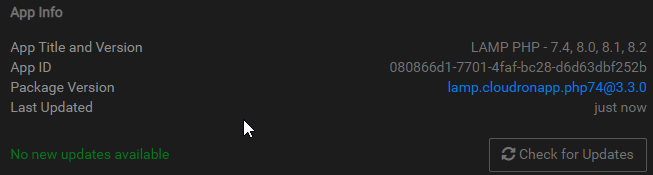
Hmm, @girish did you push a custom package?

After updating the LAMP app on my server, it still doesn't proxy properly via .htaccess file.
My version:
-
@girish the new lamp app does have the modules enabled, but still no go via .htaccess file.
root@080866d1-7701-4faf-bc28-d6d63dbf252b:/app/data/apache# apache2ctl -M | grep proxy
 proxy_module (shared)
 proxy_http_module (shared)
Oh I see; you added the proxypass block in the apache/app.conf instead.
    <Location "/">
    ProxyPass "http://localhost:8000"
    </Location>
Not sure why .htaccess doesn't work as the rewrite_module is also loaded.
@robi said in How to run AI models in LAMP App:
Not sure why .htaccess doesn't work as the rewrite_module is also loaded.
There is something wrong with that rule but I don't know htaccess configuration well enough. In fact, I wasn't aware of P before this. If you put
RewriteRule "(.*)$" "http://localhost:8000/$1" [P,L]it does something (i.e a not found page from the node app atleast).@robi said in How to run AI models in LAMP App:
RewriteRule ^/(.*)?$ http:/localhost:8000/$1 [P,L]
Also, there is a missing slash after http.
-
@robi said in How to run AI models in LAMP App:
Not sure why .htaccess doesn't work as the rewrite_module is also loaded.
There is something wrong with that rule but I don't know htaccess configuration well enough. In fact, I wasn't aware of P before this. If you put
RewriteRule "(.*)$" "http://localhost:8000/$1" [P,L]it does something (i.e a not found page from the node app atleast).@robi said in How to run AI models in LAMP App:
RewriteRule ^/(.*)?$ http:/localhost:8000/$1 [P,L]
Also, there is a missing slash after http.
-
 R robi referenced this topic on
-
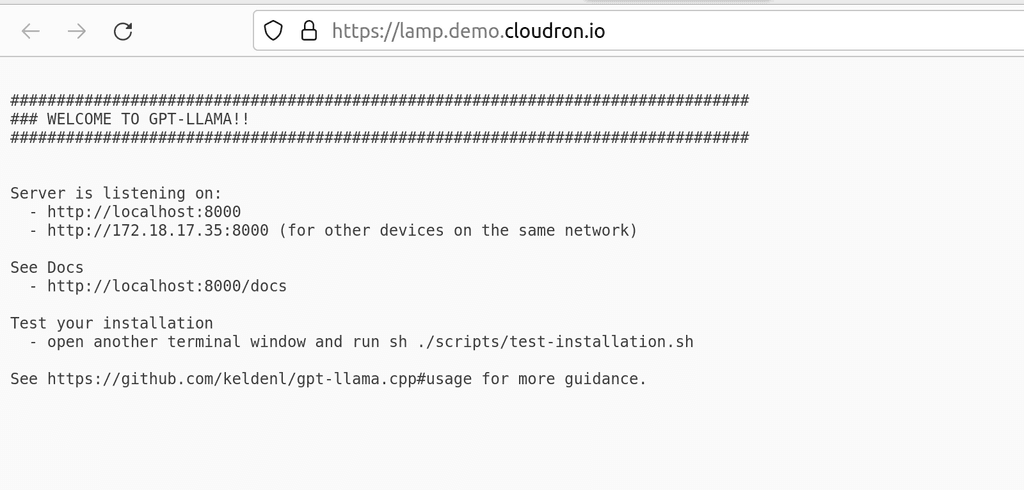
If you don't care to use the proxy features in LAMP via Apache2, you can launch the App-Proxy app from the App Store and configure it on a new subdomain to proxy to any of the LAMP installed apps on local ports via the internal Cloudron IP, ie. http://172.18.xx.xxx:port (make sure to use HTTP and not HTTPS).
You can get the internal IP from the web terminal by typing
hostname -i -
R robi referenced this topic on
-
R robi referenced this topic on
-
R robi referenced this topic on
-
R robi referenced this topic on
Hello! It looks like you're interested in this conversation, but you don't have an account yet.
Getting fed up of having to scroll through the same posts each visit? When you register for an account, you'll always come back to exactly where you were before, and choose to be notified of new replies (either via email, or push notification). You'll also be able to save bookmarks and upvote posts to show your appreciation to other community members.
With your input, this post could be even better 💗
Register Login