
Probleme nach der Aktivierung des 2FA Plugin
-
Ich habe das von LiveSurvey bereitgestellte Plugin 2-Faktor-Authentifizierung aktiviert und die Einrichtung mit meinem Nutzer durchlaufen.
Jetzt kann ich mich nicht mehr auf meiner LimeSurvey-Instanz anmelden. Der Anmelde-Dialog sieht kein Feld für die Eingabe des 2. Faktors vor - es wird einfach nichts dafür angezeigt. Sobald ich nach Eingabe von Benutzername und Passwort auf anmelden klicke, erscheint auch schon die Fehlermeldung, dass der 2. Faktor nicht stimmt - der aber gar nicht eingegeben werden konnte.
Oder liegt das möglicherweise daran, dass das LDAP-Plugin ebenfalls aktiv ist?
Ich würde mich über Hinweise und Anstupsen in die richtige Richtung sehr freuen

-
Ich habe das von LiveSurvey bereitgestellte Plugin 2-Faktor-Authentifizierung aktiviert und die Einrichtung mit meinem Nutzer durchlaufen.
Jetzt kann ich mich nicht mehr auf meiner LimeSurvey-Instanz anmelden. Der Anmelde-Dialog sieht kein Feld für die Eingabe des 2. Faktors vor - es wird einfach nichts dafür angezeigt. Sobald ich nach Eingabe von Benutzername und Passwort auf anmelden klicke, erscheint auch schon die Fehlermeldung, dass der 2. Faktor nicht stimmt - der aber gar nicht eingegeben werden konnte.
Oder liegt das möglicherweise daran, dass das LDAP-Plugin ebenfalls aktiv ist?
Ich würde mich über Hinweise und Anstupsen in die richtige Richtung sehr freuen
Ok, ich habe es nun einfach ausprobiert und die LDAP-Erweiterung deaktiviert. Anschließend wurde das Eingabefeld für 2FA auf der Anmeldeseite angezeigt.
Die Frage, die sich nun daraus ergibt, lautet: Wird LimeSurvey bei einem zukünftigen Update auf Cloudron die Erweiterung LDAP automatisch wieder reaktivieren? In dem Fall würde ich den vollständigen Zugriff auf Daten und Umfragen verlieren.
-
Hello @patmo.de
Please write topics in English to include everyone.In order to disable LDAP completely for @limesurvey you need to install the @limesurvey app with its own user management.
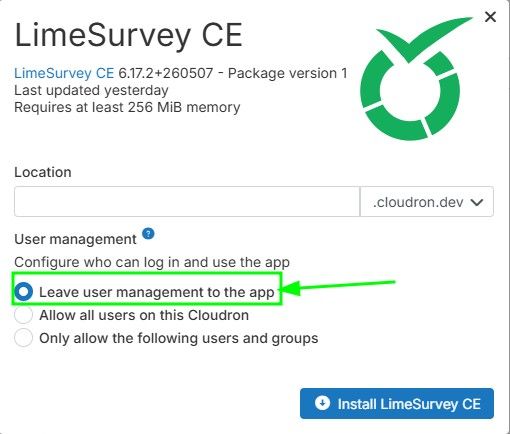
Otherwise, whenAllow all users on this Cloudronis selected, every app restart will configure and active the LDAP plugin again.I understand that you already have a @limesurvey app installed.
To migrate your @limesurvey app to theLeave user management to the appversion you need to follow some steps:- create a backup of your current @limesurvey app
- download the backup configuration
- install a new @limesurvey app and chose
Leave user management to the app - when the new app is fully installed go into the backup
Backupssettings of the new @limesurvey app and pressImport Backupand then clickupload a Backup Configto upload your previous downloaded config - press
Import - the app then restores from your backup
- confirm everything is working in order
- you are done
-
Hello James,
Thank you very much for your detailed instructions. They are easy to follow and work well.
Please note that whilst English has a wider user base, it does not include everyone.
Many thanks and best regards,
Patrick@Patmo.de said:
Please note that whilst English has a wider user base, it does not include everyone.Well… it includes more than any other language.
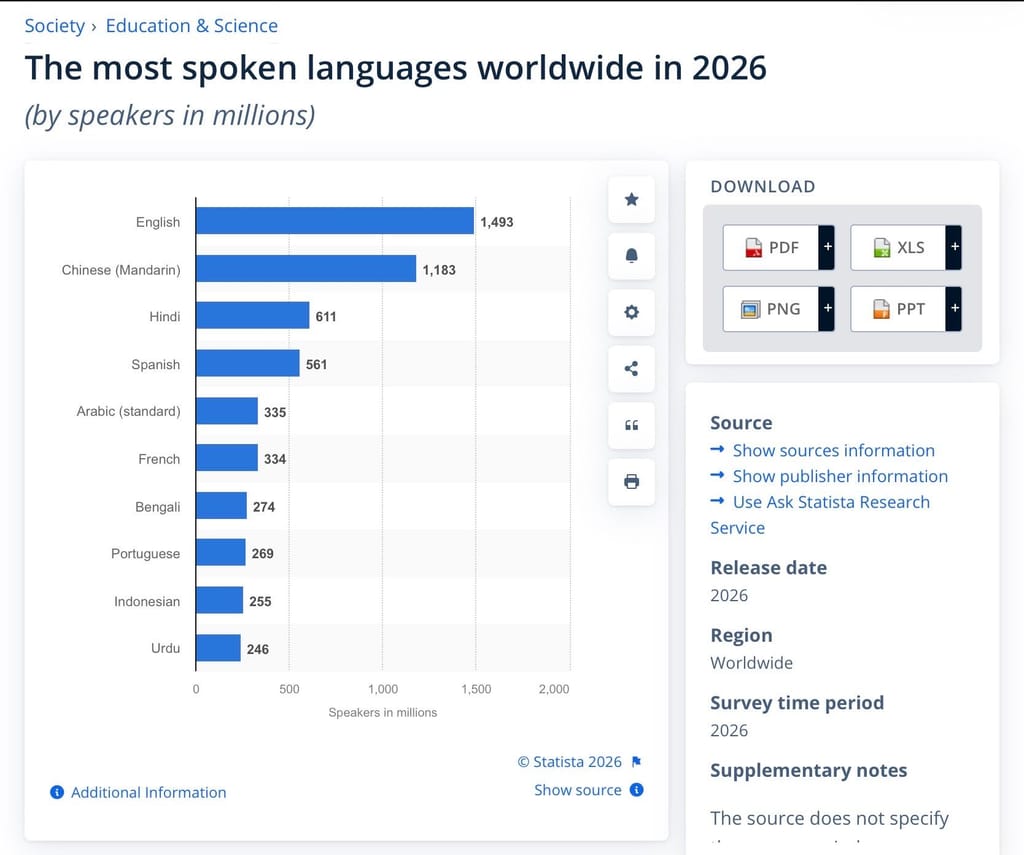
https://www.statista.com/statistics/266808/the-most-spoken-languages-worldwide/It is the de facto world language. And it is the „Treppenwitz“ of the EU that its de facto common tongue is from a country that has exited…


Hello! It looks like you're interested in this conversation, but you don't have an account yet.
Getting fed up of having to scroll through the same posts each visit? When you register for an account, you'll always come back to exactly where you were before, and choose to be notified of new replies (either via email, or push notification). You'll also be able to save bookmarks and upvote posts to show your appreciation to other community members.
With your input, this post could be even better 💗
Register Login