Cloudron makes it easy to run web apps like WordPress, Nextcloud, GitLab on your server. Find out more or install now.


Skip to content
  • Categories
  • Recent
  • Tags
  • Popular
  • Bookmarks
  • Search
Skins
  • Light
  • Brite
  • Cerulean
  • Cosmo
  • Flatly
  • Journal
  • Litera
  • Lumen
  • Lux
  • Materia
  • Minty
  • Morph
  • Pulse
  • Sandstone
  • Simplex
  • Sketchy
  • Spacelab
  • United
  • Yeti
  • Zephyr
  • Dark
  • Cyborg
  • Darkly
  • Quartz
  • Slate
  • Solar
  • Superhero
  • Vapor

  • Default (No Skin)
  • No Skin
Collapse
Brand Logo

Cloudron Forum

Apps - Status | Demo | Docs | Install
  1. Cloudron Forum
  2. App Wishlist
  3. Mixpost

Mixpost

Scheduled Pinned Locked Moved App Wishlist
164 Posts 15 Posters 90.2k Views 18 Watching
  • Oldest to Newest
  • Newest to Oldest
  • Most Votes
Reply
  • Reply as topic
Log in to reply
This topic has been deleted. Only users with topic management privileges can see it.
  • P plusone-nick

    @girish I am messing around with deploying Mixpost in a LAMP app and have gotten the config to work the Apache and SQL but i am having trouble with Redis
    In the Cloudron docs is shows how to connect to MySQL via the local docker port: 172.18.30.1

    What is the local IP for Redis? or best method to have a LAMP app connect to Redis?

    It looks like a container instance of Redis is spun up per app?

    humptydumptyH Offline
    humptydumptyH Offline
    humptydumpty
    wrote on last edited by
    #37

    @plusone-nick Are you using Mixpost Lite or Pro?

    1 Reply Last reply
    0
    • P Offline
      P Offline
      plusone-nick
      wrote on last edited by
      #38

      i am using pro

      ✌💙+1

      1 Reply Last reply
      1
      • nebulonN nebulon

        On Cloudron the apps get all the addon service credentials and connection details as environment variables in the container. So just open a webterminal into the app instance and run env

        More info at https://docs.cloudron.io/packaging/addons/

        P Offline
        P Offline
        plusone-nick
        wrote on last edited by
        #39

        @nebulon I guess I am a bit confused as I am aware of the credentials.txt and see the Redis config but don't understand what "URL" or IP i should use.

        Both SQL and Redis have their respective protocols in their URL: mysql:// and redis://

        Am i supposed to use that URL for Redis vs the local Docker IP provided like for SQL? I kinda figured Redis would have an IP i could also use.

        ✌💙+1

        girishG 1 Reply Last reply
        0
        • P plusone-nick

          @nebulon I guess I am a bit confused as I am aware of the credentials.txt and see the Redis config but don't understand what "URL" or IP i should use.

          Both SQL and Redis have their respective protocols in their URL: mysql:// and redis://

          Am i supposed to use that URL for Redis vs the local Docker IP provided like for SQL? I kinda figured Redis would have an IP i could also use.

          girishG Offline
          girishG Offline
          girish
          Staff
          wrote on last edited by
          #40

          @plusone-nick The redis IP is dynamic, so you should connect to it by name. You can use the credentials in /app/data/credentials.txt (this is the same as the env vars). Does that not work?

          P 2 Replies Last reply
          0
          • girishG girish

            @plusone-nick The redis IP is dynamic, so you should connect to it by name. You can use the credentials in /app/data/credentials.txt (this is the same as the env vars). Does that not work?

            P Offline
            P Offline
            plusone-nick
            wrote on last edited by
            #41

            @girish going to test further tonight

            ✌💙+1

            1 Reply Last reply
            0
            • girishG girish

              @plusone-nick The redis IP is dynamic, so you should connect to it by name. You can use the credentials in /app/data/credentials.txt (this is the same as the env vars). Does that not work?

              P Offline
              P Offline
              plusone-nick
              wrote on last edited by
              #42

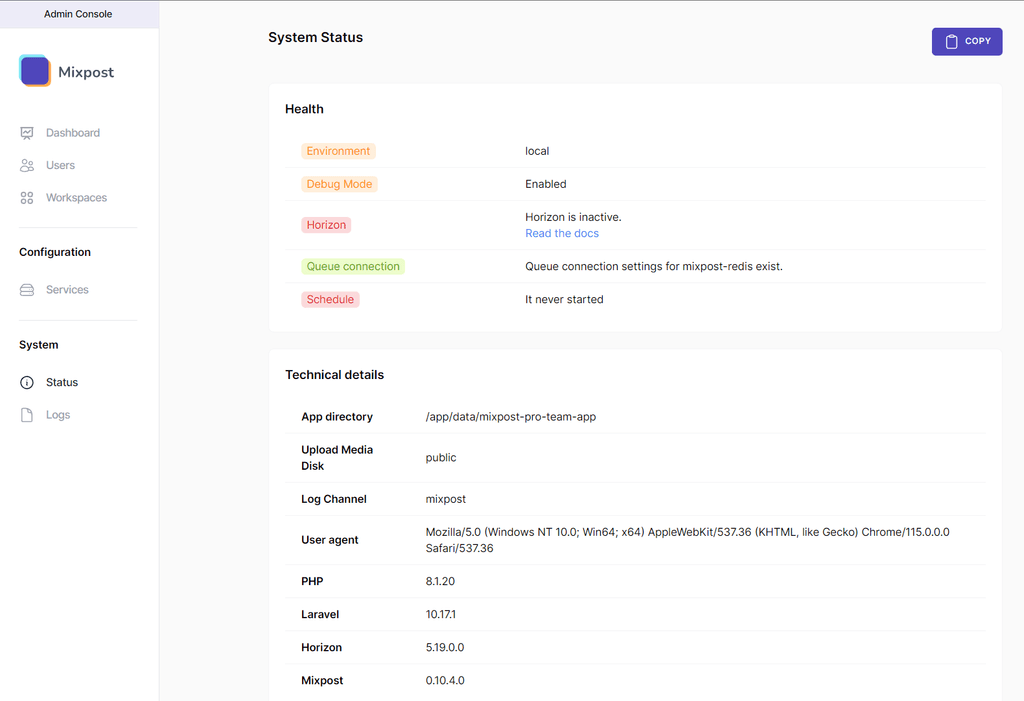
              @girish got it working with the docker host name in .env (CLOUDRON_REDIS_HOST) it did not like the (CLOUDRON_REDIS_URL)
              3b2c55b8-22eb-47fd-94cd-106e35647a28-image.png
              Have to get Horizon installed and the stuff Scheduled, will report back 🫡

              ✌💙+1

              1 Reply Last reply
              1
              • P Offline
                P Offline
                plusone-nick
                wrote on last edited by
                #43

                @girish Got horizon installed, but it soon kills as there is no schedule set. The Mixpost instructions advise setting a mixpost-horizon.conf in /etc/supervisor/conf.d but as you know its read only.
                What is the best method to approach this?
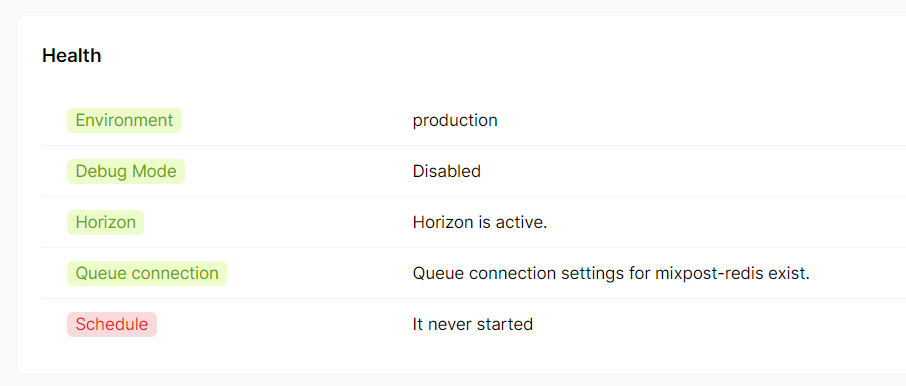
                image.png

                ✌💙+1

                1 Reply Last reply
                0
                • P Offline
                  P Offline
                  plusone-nick
                  wrote on last edited by
                  #44

                  EDIT: Apologies I got the Schedule going with the cron job... It's the Horizon/Supervisor config at /etc/supervisor/conf.d which is the last blocker

                  ✌💙+1

                  1 Reply Last reply
                  1
                  • humptydumptyH Offline
                    humptydumptyH Offline
                    humptydumpty
                    wrote on last edited by
                    #45

                    Go, Nick. Go! 💪

                    1 Reply Last reply
                    2
                    • P Offline
                      P Offline
                      plusone-nick
                      wrote on last edited by
                      #46

                      @humptydumpty lol 🫡
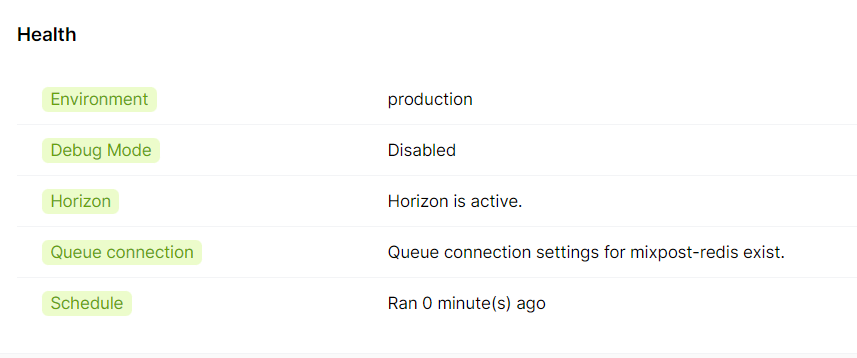
                      Final update for now: got all services "UP" and "working"
                      ef72b891-db15-4ffc-8dd0-d0e3cd532752-image.png

                      BUT... - still need to have Horizon/Supervisor Config set as it only stays alive for a little, in that time I was able to push some posts through

                      image.png

                      Dwindled down from 38 to 7 errors – something regarding: Illuminate & Symfony


                      [2023-08-06 22:56:13] production.ERROR: Not enough arguments (missing: "name"). {"exception":"[object] (Symfony\Component\Console\Exception\RuntimeException(code: 0): Not enough arguments (missing: "name"). at /app/data/mixpost-pro-team-app/vendor/symfony/console/Input/Input.php:76)
                      [stacktrace]
                      #0 /app/data/mixpost-pro-team-app/vendor/symfony/console/Command/Command.php(321): Symfony\Component\Console\Input\Input->validate()
                      #1 /app/data/mixpost-pro-team-app/vendor/laravel/framework/src/Illuminate/Console/Command.php(181): Symfony\Component\Console\Command\Command->run()
                      #2 /app/data/mixpost-pro-team-app/vendor/symfony/console/Application.php(1081): Illuminate\Console\Command->run()
                      #3 /app/data/mixpost-pro-team-app/vendor/symfony/console/Application.php(320): Symfony\Component\Console\Application->doRunCommand()
                      #4 /app/data/mixpost-pro-team-app/vendor/symfony/console/Application.php(174): Symfony\Component\Console\Application->doRun()
                      #5 /app/data/mixpost-pro-team-app/vendor/laravel/framework/src/Illuminate/Foundation/Console/Kernel.php(201): Symfony\Component\Console\Application->run()
                      #6 /app/data/mixpost-pro-team-app/artisan(37): Illuminate\Foundation\Console\Kernel->handle()
                      #7 {main}
                      "}

                      @girish @lao9s any thoughts or suggestions? 🤓

                      ✌💙+1

                      girishG 1 Reply Last reply
                      3
                      • P plusone-nick

                        @humptydumpty lol 🫡
                        Final update for now: got all services "UP" and "working"
                        ef72b891-db15-4ffc-8dd0-d0e3cd532752-image.png

                        BUT... - still need to have Horizon/Supervisor Config set as it only stays alive for a little, in that time I was able to push some posts through
                        image.png

                        Dwindled down from 38 to 7 errors – something regarding: Illuminate & Symfony


                        [2023-08-06 22:56:13] production.ERROR: Not enough arguments (missing: "name"). {"exception":"[object] (Symfony\Component\Console\Exception\RuntimeException(code: 0): Not enough arguments (missing: "name"). at /app/data/mixpost-pro-team-app/vendor/symfony/console/Input/Input.php:76)
                        [stacktrace]
                        #0 /app/data/mixpost-pro-team-app/vendor/symfony/console/Command/Command.php(321): Symfony\Component\Console\Input\Input->validate()
                        #1 /app/data/mixpost-pro-team-app/vendor/laravel/framework/src/Illuminate/Console/Command.php(181): Symfony\Component\Console\Command\Command->run()
                        #2 /app/data/mixpost-pro-team-app/vendor/symfony/console/Application.php(1081): Illuminate\Console\Command->run()
                        #3 /app/data/mixpost-pro-team-app/vendor/symfony/console/Application.php(320): Symfony\Component\Console\Application->doRunCommand()
                        #4 /app/data/mixpost-pro-team-app/vendor/symfony/console/Application.php(174): Symfony\Component\Console\Application->doRun()
                        #5 /app/data/mixpost-pro-team-app/vendor/laravel/framework/src/Illuminate/Foundation/Console/Kernel.php(201): Symfony\Component\Console\Application->run()
                        #6 /app/data/mixpost-pro-team-app/artisan(37): Illuminate\Foundation\Console\Kernel->handle()
                        #7 {main}
                        "}

                        @girish @lao9s any thoughts or suggestions? 🤓

                        girishG Offline
                        girishG Offline
                        girish
                        Staff
                        wrote on last edited by
                        #47

                        @plusone-nick said in Mixpost:

                        [2023-08-06 22:56:13] production.ERROR: Not enough arguments (missing: "name"). {"exception":"[object] (Symfony\Component\Console\Exception\RuntimeException(code: 0): Not enough arguments (missing: "name"). at /app/data/mixpost-pro-team-app/vendor/symfony/console/Input/Input.php:76)

                        this seems like some CLI is expecting more arguments (specifically --name or something)

                        1 Reply Last reply
                        1
                        • P Offline
                          P Offline
                          plusone-nick
                          wrote on last edited by
                          #48

                          All errors cleared, and the system has been up for about two days going on three so i think it's safe to say its usable
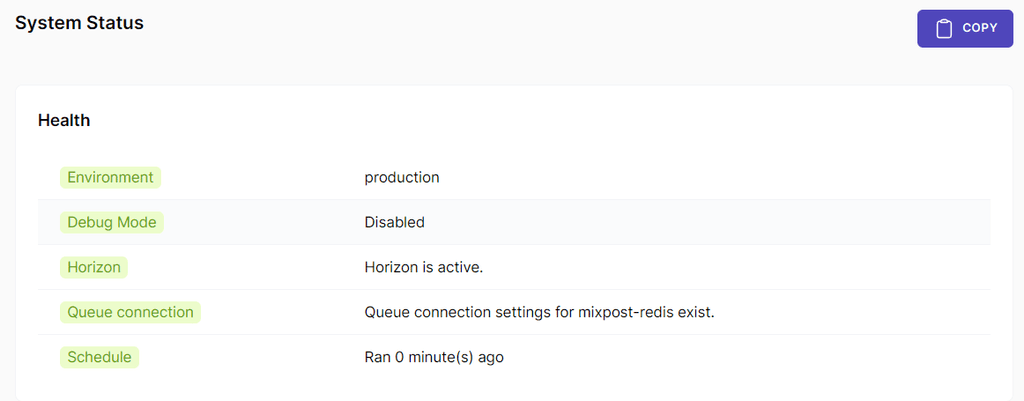
                          image.png
                          Still need a workaround for one last step to complete: configure a process monitor Supervisor as it wants to write to /etc/supervisor/conf.d

                          Other than that i will document the steps i took and share them here before the end of the week

                          ✌💙+1

                          1 Reply Last reply
                          4
                          • P Offline
                            P Offline
                            plusone-nick
                            wrote on last edited by plusone-nick
                            #49

                            Cloudron + Mixpost + LAMP = +1

                            Note: this is for the Pro/Enterprise version of Mixpost

                            On a fresh LAMP install open a terminal

                            Step 1:

                             cd /app/data/
                            

                            Step 2:

                             composer create-project inovector/mixpost-pro-team-app
                            

                            Step 3: From the File Manager: You can use command line if you like

                             Change owner of the mixpost-pro-team-app folder to www-data
                            

                            Step 4 Enter the mixpost-pro-team-app folder and open .env and Populate:

                            APP_URL=https://YOUR-DOMAIN
                            APP_ENV=production (WHEN READY)
                            APP_DEBUG=fale
                            

                            Step 5: Populate SQL (creds @: /app/data/credentials.txt)

                            DB_HOST=172.18.30.1            /
                            DB_PORT=3306                     /
                            DB_DATABASE=CLOUDRON_MYSQL_DATABASE
                            DB_USERNAME=CLOUDRON_MYSQL_USERNAME
                            DB_PASSWORD=CLOUDRON_MYSQL_PASSWORD
                            

                            NOTE: I had to put the slash / after the two DB_ env vars because the numbers were causing a line bug in the markdown while generating this post so make sure to remove them if you copy and paste the whole code block

                            Step 6: Populate REDIS (creds @: /app/data/credentials.txt )

                            REDIS_HOST=CLOUDRON_REDIS_HOST
                            REDIS_PASSWORD=CLOUDRON_REDIS_PASSWORD
                            REDIS_PORT=6379
                            

                            - Save and Close

                            Step 7: Configure Database Tables:

                            cd /app/data/mixpost-pro-team-app  
                            php artisan queue:batches-table
                            php artisan migrate
                            php artisan vendor:publish --tag=mixpost-config
                            

                            Step 8: go to and edit

                            /app/data/apache/app.conf
                            

                            Change both instances of: /app/data/public
                            To:

                            /app/data/mixpost-pro-team-app/public
                            

                            - Save and Close

                            Step 9: On the CRON tab paste and save below:

                            * * * * * cd /app/data/mixpost-pro-team-app && php artisan schedule:run >> /app/data/null 2>&1
                            

                            Step 10: Install Supervisor:

                            sudo apt-get install supervisor
                            

                            Step 11: Cache Config:

                            php artisan config:cache
                            

                            Step 12: Cache Routes:

                            php artisan route:cache
                            

                            Step 13: Restart the APP to save the config

                            Step 14: Go to /app/data/mixpost-pro-team-app/ & Then Start Horizon

                            cd /app/data/mixpost-pro-team-app/
                            php artisan horizon
                            

                            Step 15: Go to the landing page and register!

                            🦾🤓


                            NOTE: i think there is still a need to figure out a solution to configure Supervisor: https://docs.inovector.com/books/server-configuration-mixpost/page/installing-configuring-supervisor

                            • Until then manually start the app with php artisan horizon as needed

                            • I Only have one license so I had to retrace the steps I took. If there are any errors please forgive me!

                            • If anyone runs into issues let me know. I will help troubleshoot and can rebuild my instance as needed =]
                              ✌️💖+1

                            ✌💙+1

                            humptydumptyH 1 Reply Last reply
                            6
                            • P plusone-nick

                              Cloudron + Mixpost + LAMP = +1

                              Note: this is for the Pro/Enterprise version of Mixpost

                              On a fresh LAMP install open a terminal

                              Step 1:

                               cd /app/data/
                              

                              Step 2:

                               composer create-project inovector/mixpost-pro-team-app
                              

                              Step 3: From the File Manager: You can use command line if you like

                               Change owner of the mixpost-pro-team-app folder to www-data
                              

                              Step 4 Enter the mixpost-pro-team-app folder and open .env and Populate:

                              APP_URL=https://YOUR-DOMAIN
                              APP_ENV=production (WHEN READY)
                              APP_DEBUG=fale
                              

                              Step 5: Populate SQL (creds @: /app/data/credentials.txt)

                              DB_HOST=172.18.30.1            /
                              DB_PORT=3306                     /
                              DB_DATABASE=CLOUDRON_MYSQL_DATABASE
                              DB_USERNAME=CLOUDRON_MYSQL_USERNAME
                              DB_PASSWORD=CLOUDRON_MYSQL_PASSWORD
                              

                              NOTE: I had to put the slash / after the two DB_ env vars because the numbers were causing a line bug in the markdown while generating this post so make sure to remove them if you copy and paste the whole code block

                              Step 6: Populate REDIS (creds @: /app/data/credentials.txt )

                              REDIS_HOST=CLOUDRON_REDIS_HOST
                              REDIS_PASSWORD=CLOUDRON_REDIS_PASSWORD
                              REDIS_PORT=6379
                              

                              - Save and Close

                              Step 7: Configure Database Tables:

                              cd /app/data/mixpost-pro-team-app  
                              php artisan queue:batches-table
                              php artisan migrate
                              php artisan vendor:publish --tag=mixpost-config
                              

                              Step 8: go to and edit

                              /app/data/apache/app.conf
                              

                              Change both instances of: /app/data/public
                              To:

                              /app/data/mixpost-pro-team-app/public
                              

                              - Save and Close

                              Step 9: On the CRON tab paste and save below:

                              * * * * * cd /app/data/mixpost-pro-team-app && php artisan schedule:run >> /app/data/null 2>&1
                              

                              Step 10: Install Supervisor:

                              sudo apt-get install supervisor
                              

                              Step 11: Cache Config:

                              php artisan config:cache
                              

                              Step 12: Cache Routes:

                              php artisan route:cache
                              

                              Step 13: Restart the APP to save the config

                              Step 14: Go to /app/data/mixpost-pro-team-app/ & Then Start Horizon

                              cd /app/data/mixpost-pro-team-app/
                              php artisan horizon
                              

                              Step 15: Go to the landing page and register!

                              🦾🤓


                              NOTE: i think there is still a need to figure out a solution to configure Supervisor: https://docs.inovector.com/books/server-configuration-mixpost/page/installing-configuring-supervisor

                              • Until then manually start the app with php artisan horizon as needed

                              • I Only have one license so I had to retrace the steps I took. If there are any errors please forgive me!

                              • If anyone runs into issues let me know. I will help troubleshoot and can rebuild my instance as needed =]
                                ✌️💖+1

                              humptydumptyH Offline
                              humptydumptyH Offline
                              humptydumpty
                              wrote on last edited by
                              #50

                              @plusone-nick I have a Pro license and haven't been able to try Mixpost yet. I'll give it shot soon and report back. Thank you so much for getting this going!!

                              1 Reply Last reply
                              2
                              • humptydumptyH Offline
                                humptydumptyH Offline
                                humptydumpty
                                wrote on last edited by
                                #51

                                @plusone-nick Step 7 error: Could not open input file: artisan

                                I decided to continue anyway. Step 8 & 9 were easy. Step 10 error: bash: cd: app/Console/: No such file or directory

                                This is where I stopped. To backtrack a bit, what exactly do you mean by populate? I might have messed up Step 5 & 6. I tried to use the variables and not the actual values since it's mentioned they change on app restart so, CLOUDRON_MYSQL_DATABASE but that didn't get me through Step 7. Then, I tried the actual values of each field which were located in /app/data/credentials.txt. That didn't help with Step 7 either.

                                P 1 Reply Last reply
                                0
                                • humptydumptyH humptydumpty

                                  @plusone-nick Step 7 error: Could not open input file: artisan

                                  I decided to continue anyway. Step 8 & 9 were easy. Step 10 error: bash: cd: app/Console/: No such file or directory

                                  This is where I stopped. To backtrack a bit, what exactly do you mean by populate? I might have messed up Step 5 & 6. I tried to use the variables and not the actual values since it's mentioned they change on app restart so, CLOUDRON_MYSQL_DATABASE but that didn't get me through Step 7. Then, I tried the actual values of each field which were located in /app/data/credentials.txt. That didn't help with Step 7 either.

                                  P Offline
                                  P Offline
                                  plusone-nick
                                  wrote on last edited by
                                  #52

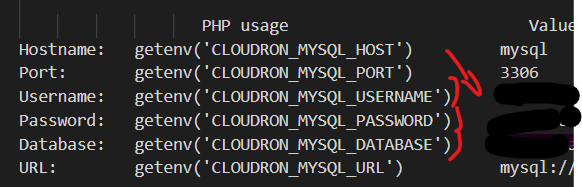
                                  @humptydumpty you can't use the variables until you set them in the .env file
                                  so you have to remove the placeholders like "CLOUDRON_MYSQL_DATABASE" and put the value for that variable which is located in /app/data/credentials.txt
                                  e710262d-3455-4555-ba78-c4a5f994d1ac-image.png
                                  They are like 16 and 32 characters long

                                  ✌💙+1

                                  1 Reply Last reply
                                  0
                                  • humptydumptyH Offline
                                    humptydumptyH Offline
                                    humptydumpty
                                    wrote on last edited by humptydumpty
                                    #53

                                    OK, I made the changes and this is my .env file:

                                    image.png

                                    Still, step 7 with same error.

                                    1 Reply Last reply
                                    0
                                    • humptydumptyH Offline
                                      humptydumptyH Offline
                                      humptydumpty
                                      wrote on last edited by humptydumpty
                                      #54

                                      I think I'm doing Step 7 wrong. Do you paste all 3 commands together in the terminal or do these go elsewhere?

                                      Edit: I'm reading thru Mixpost's docs, and I think I prematurely changed the APP_ENV to production. They have that listed after doing the artisan stuff and when the UI is up. I'll try again tomorrow with a fresh mind. Doing this after work is a horrible idea😵

                                      P 1 Reply Last reply
                                      1
                                      • humptydumptyH humptydumpty

                                        I think I'm doing Step 7 wrong. Do you paste all 3 commands together in the terminal or do these go elsewhere?

                                        Edit: I'm reading thru Mixpost's docs, and I think I prematurely changed the APP_ENV to production. They have that listed after doing the artisan stuff and when the UI is up. I'll try again tomorrow with a fresh mind. Doing this after work is a horrible idea😵

                                        P Offline
                                        P Offline
                                        plusone-nick
                                        wrote on last edited by
                                        #55

                                        @humptydumpty do them one at a time and i think you can change it back. I will try a build from scratch tomorrow and go thru the docs to update as needed.

                                        ✌💙+1

                                        1 Reply Last reply
                                        0
                                        • P Offline
                                          P Offline
                                          plusone-nick
                                          wrote on last edited by plusone-nick
                                          #56

                                          @humptydumpty i see it - your DB host is wrong: should be DB_HOST=172.18.30.1
                                          everything else looks correct.

                                          ✌💙+1

                                          1 Reply Last reply
                                          0

                                          Hello! It looks like you're interested in this conversation, but you don't have an account yet.

                                          Getting fed up of having to scroll through the same posts each visit? When you register for an account, you'll always come back to exactly where you were before, and choose to be notified of new replies (either via email, or push notification). You'll also be able to save bookmarks and upvote posts to show your appreciation to other community members.

                                          With your input, this post could be even better 💗

                                          Register Login
                                          Reply
                                          • Reply as topic
                                          Log in to reply
                                          • Oldest to Newest
                                          • Newest to Oldest
                                          • Most Votes


                                          • Login

                                          • Don't have an account? Register

                                          • Login or register to search.
                                          • First post
                                            Last post
                                          0
                                          • Categories
                                          • Recent
                                          • Tags
                                          • Popular
                                          • Bookmarks
                                          • Search