
Bulk WordPress Updates
-
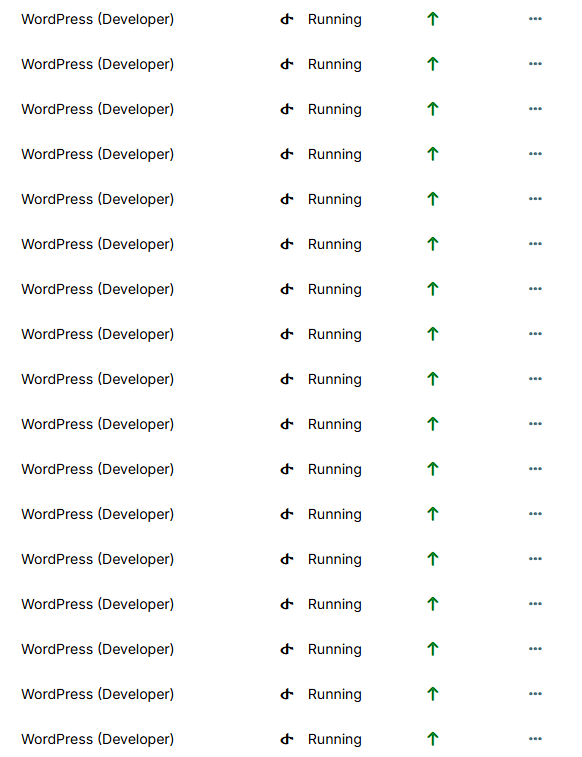
How do I mass update hundreds of my WordPress websites?
I can't select which ones to update by checking the boxes to perform a mass update.
-
Hello @imatbagjagumilar
I see you just created your topic first in @discuss and now in @wordpress-managed, but I can see from the screenshot you are using the @wordpress-developer app variant.
In the future, you don't need to delete your post, we can simply move it to the correct category.
I will move your topic to @wordpress-developer
To answer your question, there is no way to mass update many apps.
What you can do is configure the automatic app and system updates in the dashboard under/#/system-updateto run every hour and let the system do its job over a day.
This will update all apps and not like you stated specific ones.
The following is not possible from the dashboard, but you can set a quicker time frame instead of hourly with the API.Example: Run app and system updates every minute.
# Replace $TOKEN with your API token
export TOKEN="GENERATED_TOKEN"
curl 'https://my.cloudron.dev/api/v1/updater/autoupdate_config' \
  -H "Authorization: Bearer $TOKEN" \
  -H 'content-type: application/json' \
  --data-raw '{"schedule":"*/1 * * * *","policy":"platform_and_apps"}'
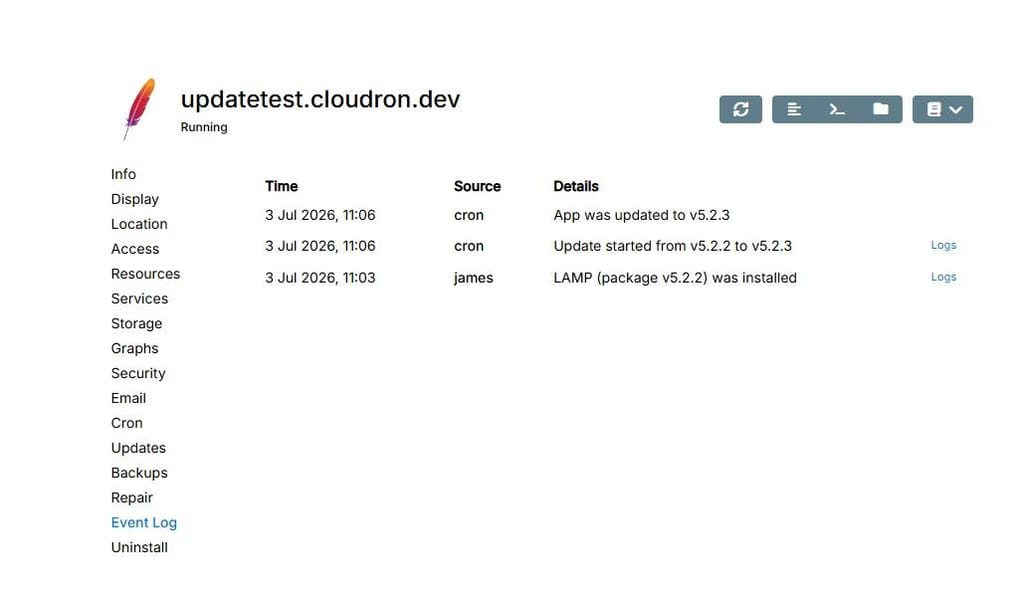
I have tested this by installing a previous version of the LAMP app and then just waited.
You could also create a list off app IDs that should be updated and then also use the API to update them.
Maybe we can also treat this topic as a feature request.
Add the option to select apps to perform actions for the selected apps
e.g.: update, disable/enable auto updates, stop/start etc. -
 J james moved this topic from WordPress (Managed) on
-
Hello @imatbagjagumilar
I see you just created your topic first in @discuss and now in @wordpress-managed, but I can see from the screenshot you are using the @wordpress-developer app variant.
In the future, you don't need to delete your post, we can simply move it to the correct category.
I will move your topic to @wordpress-developer
To answer your question, there is no way to mass update many apps.
What you can do is configure the automatic app and system updates in the dashboard under/#/system-updateto run every hour and let the system do its job over a day.
This will update all apps and not like you stated specific ones.
The following is not possible from the dashboard, but you can set a quicker time frame instead of hourly with the API.Example: Run app and system updates every minute.
# Replace $TOKEN with your API token
export TOKEN="GENERATED_TOKEN"
curl 'https://my.cloudron.dev/api/v1/updater/autoupdate_config' \
  -H "Authorization: Bearer $TOKEN" \
  -H 'content-type: application/json' \
  --data-raw '{"schedule":"*/1 * * * *","policy":"platform_and_apps"}'
I have tested this by installing a previous version of the LAMP app and then just waited.
You could also create a list off app IDs that should be updated and then also use the API to update them.
Maybe we can also treat this topic as a feature request.
Add the option to select apps to perform actions for the selected apps
e.g.: update, disable/enable auto updates, stop/start etc. -
Hello @imatbagjagumilar
I see you just created your topic first in @discuss and now in @wordpress-managed, but I can see from the screenshot you are using the @wordpress-developer app variant.
In the future, you don't need to delete your post, we can simply move it to the correct category.
I will move your topic to @wordpress-developer
To answer your question, there is no way to mass update many apps.
What you can do is configure the automatic app and system updates in the dashboard under/#/system-updateto run every hour and let the system do its job over a day.
This will update all apps and not like you stated specific ones.
The following is not possible from the dashboard, but you can set a quicker time frame instead of hourly with the API.Example: Run app and system updates every minute.
# Replace $TOKEN with your API token
export TOKEN="GENERATED_TOKEN"
curl 'https://my.cloudron.dev/api/v1/updater/autoupdate_config' \
  -H "Authorization: Bearer $TOKEN" \
  -H 'content-type: application/json' \
  --data-raw '{"schedule":"*/1 * * * *","policy":"platform_and_apps"}'
I have tested this by installing a previous version of the LAMP app and then just waited.
You could also create a list off app IDs that should be updated and then also use the API to update them.
Maybe we can also treat this topic as a feature request.
Add the option to select apps to perform actions for the selected apps
e.g.: update, disable/enable auto updates, stop/start etc.@james I've used several panels... one of the panels I use is Cloudron, which has some pretty interesting features. It's simple and easy to use. I hope this can continue to be developed for people like me who don't have a complicated panel management experience.
I just renewed my subscription a few years ago, and I estimate I'll be using Cloudron for maybe 1.5 years...
The explanation here... I don't understand... how to do it... hahaha
-
@james I've used several panels... one of the panels I use is Cloudron, which has some pretty interesting features. It's simple and easy to use. I hope this can continue to be developed for people like me who don't have a complicated panel management experience.
I just renewed my subscription a few years ago, and I estimate I'll be using Cloudron for maybe 1.5 years...
The explanation here... I don't understand... how to do it... hahaha
Hello @imatbagjagumilar
I hope this can continue to be developed for people like me who don't have a complicated panel management experience.
That is the idea.
Make self-hosting easy to use, understandable and reliable.
If you have feedback for us how we can improve?
When ever you find something that is not clear enough?
Please let us know!
When reporting these things here, be assured we greatly appreciate the feedback and will try to improve Cloudron all the time. -
J james referenced this topic on
-
@imatbagjagumilar If you still want to try this, the easiest way I can think of to accomplish these steps are as follows:
- In the cloudron portal navigate to System > Updates
- Now you should see the current update schedule and an edit hyperlink on the right to make changes to it
- Click Edit
- Take note of what your settings are currently as you will likely want to change them back after your app has been fully updated
- Make a change, like adding an additional hour of the day, but don't click save
- Press F12 to open the developer tools of your browser (I used a chrome based browser)
- Navigate to the network tab on in the developer tools
- Go back to the page and click Save
- Go back to Developer Tools network tab and you will now see two requests that have a name that starts with autoupdate_config
- Right click on the first one (it is the one that did a POST request), Navigate in the menu to Copy, and then click Copy as fetch
- Now in the developer tools click on the console tab and Paste in what you copied
- You should now have something like the following
fetch("https://SomeDomain.com/api/v1/updater/autoupdate_config?access_token=SomeToken", { "headers": { "accept": "*/*", "accept-language": "en-US,en;q=0.9", "cache-control": "no-cache", "content-type": "application/json", "pragma": "no-cache", "priority": "u=1, i", "sec-ch-ua": "\"Not;A=Brand\";v=\"8\", \"Chromium\";v=\"150\", \"Microsoft Edge\";v=\"150\"", "sec-ch-ua-mobile": "?0", "sec-ch-ua-platform": "\"Windows\"", "sec-fetch-dest": "empty", "sec-fetch-mode": "cors", "sec-fetch-site": "same-origin" }, "referrer": "https://SomeDomain.com/", "body": "{\"schedule\":\"00 00 0,1,5,6,7,20,21,2 * * *\",\"policy\":\"platform_and_apps\"}", "method": "POST", "mode": "cors", "credentials": "include" });- Edit the line
"body": "{\"schedule\":\"00 00 0,1,5,6,7,20,21,2 * * *\",\"policy\":\"platform_and_apps\"}",to be"body": "{\"schedule\":\"*/1 * * * *\",\"policy\":\"platform_and_apps\"}", - In the console go to the end of what you pasted and press enter to run it
- Now if you look at the Updates cloudron page it should say it is doing updates Every day @ hourly which is the fastest that it can recognize but in reality it will be running every minute
After your fully updated, go back to the Updates screen and change it back to whatever update schedule you want.




Hello! It looks like you're interested in this conversation, but you don't have an account yet.
Getting fed up of having to scroll through the same posts each visit? When you register for an account, you'll always come back to exactly where you were before, and choose to be notified of new replies (either via email, or push notification). You'll also be able to save bookmarks and upvote posts to show your appreciation to other community members.
With your input, this post could be even better 💗
Register Login