
wp-cli not working on 6.3.5?
-
@martinkbs I think same as https://forum.cloudron.io/topic/5382/wp-cli-disappeared . Can you try giving the full path?
Reconnecting... If you resize the browser window, press Ctrl+D to start a new session with the current size. root@2d2d8096-2889-44f0-b36b-0aed411943c6:/app/code# cd /app/pkg/wp bash: cd: /app/pkg/wp: Not a directory root@2d2d8096-2889-44f0-b36b-0aed411943c6:/app/code# cd /app/pkg/ root@2d2d8096-2889-44f0-b36b-0aed411943c6:/app/pkg# ls authLdap.zip credentials.template cron.sh mpm_prefork.conf smtp-mailer.zip start.sh wp wp-convert-multisite wp-redis-cache.zip root@2d2d8096-2889-44f0-b36b-0aed411943c6:/app/pkg# wp plugin list bash: wp: command not found root@2d2d8096-2889-44f0-b36b-0aed411943c6:/app/pkg# -
Reconnecting... If you resize the browser window, press Ctrl+D to start a new session with the current size. root@2d2d8096-2889-44f0-b36b-0aed411943c6:/app/code# cd /app/pkg/wp bash: cd: /app/pkg/wp: Not a directory root@2d2d8096-2889-44f0-b36b-0aed411943c6:/app/code# cd /app/pkg/ root@2d2d8096-2889-44f0-b36b-0aed411943c6:/app/pkg# ls authLdap.zip credentials.template cron.sh mpm_prefork.conf smtp-mailer.zip start.sh wp wp-convert-multisite wp-redis-cache.zip root@2d2d8096-2889-44f0-b36b-0aed411943c6:/app/pkg# wp plugin list bash: wp: command not found root@2d2d8096-2889-44f0-b36b-0aed411943c6:/app/pkg# -
Reconnecting... If you resize the browser window, press Ctrl+D to start a new session with the current size. root@2d2d8096-2889-44f0-b36b-0aed411943c6:/app/code# cd /app/pkg/wp bash: cd: /app/pkg/wp: Not a directory root@2d2d8096-2889-44f0-b36b-0aed411943c6:/app/code# cd /app/pkg/ root@2d2d8096-2889-44f0-b36b-0aed411943c6:/app/pkg# ls authLdap.zip credentials.template cron.sh mpm_prefork.conf smtp-mailer.zip start.sh wp wp-convert-multisite wp-redis-cache.zip root@2d2d8096-2889-44f0-b36b-0aed411943c6:/app/pkg# wp plugin list bash: wp: command not found root@2d2d8096-2889-44f0-b36b-0aed411943c6:/app/pkg# -
@martinkbs you have to either do
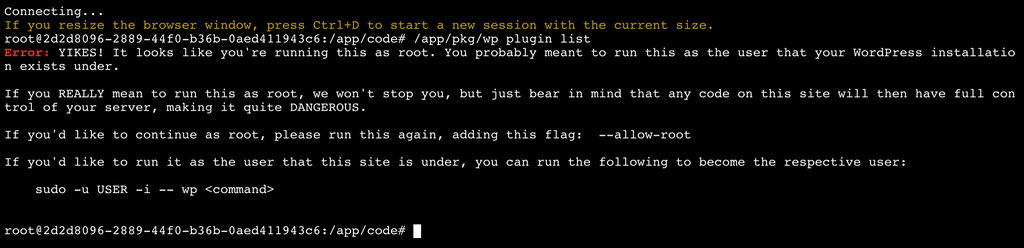
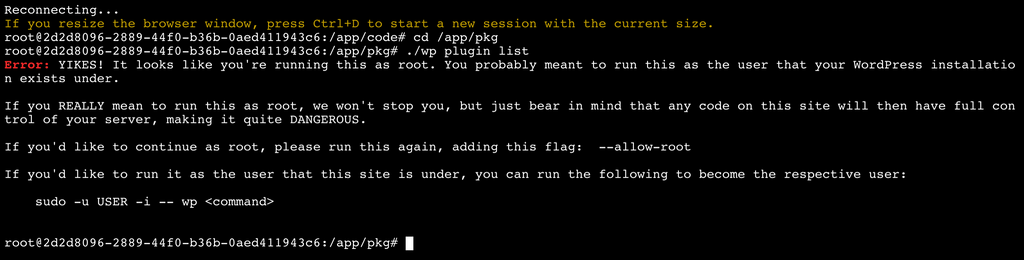
/app/pkg/wp plugin listOR if youcd /app/pkg, then./wp plugin list(the dot slash in the front is important). -
With /app/pkg/wp plugin list
With cd /app/pkg, then ./wp plugin list
The installation is always WordPress (Developer)
@martinkbs you have to use the command like in https://docs.cloudron.io/apps/wordpress-developer/#wp-cli . So,
sudo -E -u www-data php /app/pkg/wp --path=/app/data/public/ plugin listTo explain the arguments:
sudois for running the command as a different user.-u www-datameans run it as www-data user (which is what apache is running as)- -E means to preserve environment variables. This way the container's env vars are passed on to the CLI command as well.
- --path is required to specify the path to the installation of WP.
-
@martinkbs you have to use the command like in https://docs.cloudron.io/apps/wordpress-developer/#wp-cli . So,
sudo -E -u www-data php /app/pkg/wp --path=/app/data/public/ plugin listTo explain the arguments:
sudois for running the command as a different user.-u www-datameans run it as www-data user (which is what apache is running as)- -E means to preserve environment variables. This way the container's env vars are passed on to the CLI command as well.
- --path is required to specify the path to the installation of WP.
Hi @girish
WP-cli commands, up to version 6.3.X update have always worked the same way. In fact, I have several Cloudrons in version 6.2.8, in which the 'wp plugin list' command works as WP-cli has to.
According to your explanation, it means that from now on, in version 6.3.X you have to put the command as you mentioned?
sudo -E -u www-data php /app/pkg/wp --path=/app/data/public/ plugin listOr is it going to restore the original format that was used until now? As you will see, it is not a very productive way to work with the terminal.
-
Hi @girish
WP-cli commands, up to version 6.3.X update have always worked the same way. In fact, I have several Cloudrons in version 6.2.8, in which the 'wp plugin list' command works as WP-cli has to.
According to your explanation, it means that from now on, in version 6.3.X you have to put the command as you mentioned?
sudo -E -u www-data php /app/pkg/wp --path=/app/data/public/ plugin listOr is it going to restore the original format that was used until now? As you will see, it is not a very productive way to work with the terminal.
-
I had made a change that source any app specific rcfile for 6.3. I did this for https://forum.cloudron.io/topic/4992/seting-bash-aliases-for-cloudron-terminal. Unfortunately, this breaks sourcing of the personal rcfile. From the man page,
--rcfile file Execute commands from file instead of the system wide initialization file /etc/bash.bashrc and the standard personal initialization file ~/.bashrc if the shell is interac‐ tive (see INVOCATION below).@martinkbs I will look into how to fix this now that I know what the issue is. Thanks for reporting! For the moment, the workaround is to type
source /root/.bashrcafter you open a web terminal and then the wp command should work. -
I had made a change that source any app specific rcfile for 6.3. I did this for https://forum.cloudron.io/topic/4992/seting-bash-aliases-for-cloudron-terminal. Unfortunately, this breaks sourcing of the personal rcfile. From the man page,
--rcfile file Execute commands from file instead of the system wide initialization file /etc/bash.bashrc and the standard personal initialization file ~/.bashrc if the shell is interac‐ tive (see INVOCATION below).@martinkbs I will look into how to fix this now that I know what the issue is. Thanks for reporting! For the moment, the workaround is to type
source /root/.bashrcafter you open a web terminal and then the wp command should work.Thanks @girish
Checked. After starting the terminal, inserting the command
source /root/.bashrc, WP-cli works normally.Connecting... If you resize the browser window, press Ctrl+D to start a new session with the current size. root@2d2d8096-2889-44f0-b36b-0aed411943c6:/app/code# source /root/.bashrc root@2d2d8096-2889-44f0-b36b-0aed411943c6:/app/code# wp core version 5.8 root@2d2d8096-2889-44f0-b36b-0aed411943c6:/app/code#At least, even temporarily, it solves the problem and lets you use the terminal.
If you need help, please let me know to make checks.
Thanks again!


Hello! It looks like you're interested in this conversation, but you don't have an account yet.
Getting fed up of having to scroll through the same posts each visit? When you register for an account, you'll always come back to exactly where you were before, and choose to be notified of new replies (either via email, or push notification). You'll also be able to save bookmarks and upvote posts to show your appreciation to other community members.
With your input, this post could be even better 💗
Register Login