
How to Setup LinkStack on Cloudron
-
-
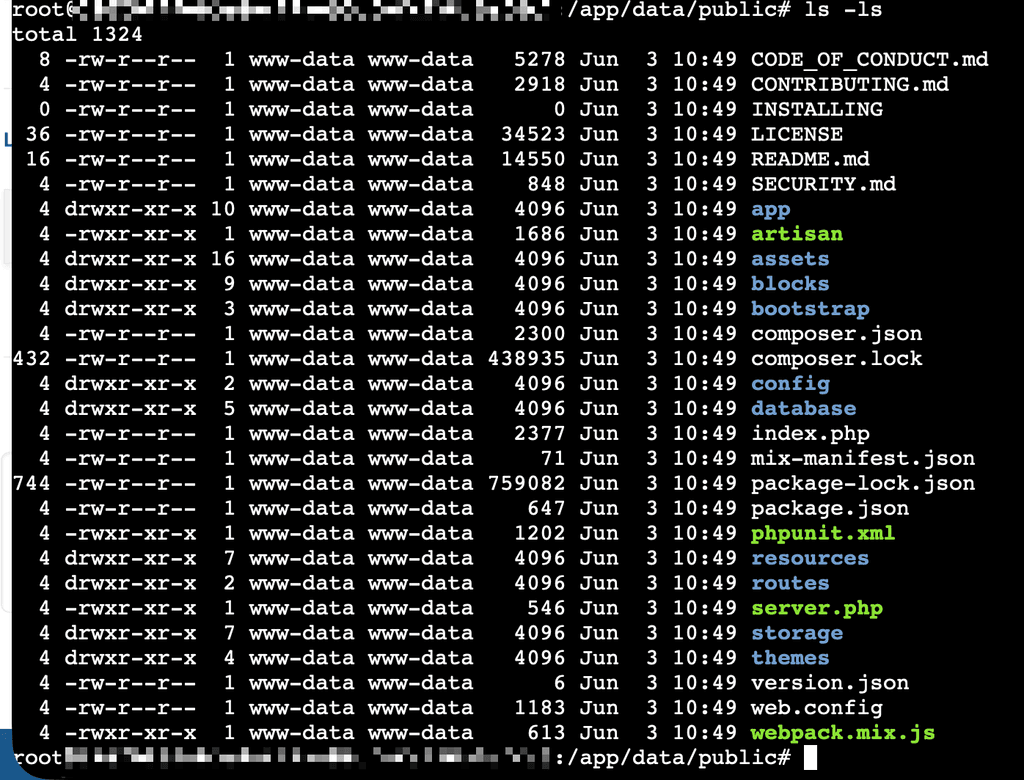
Thank you for the quick response. Nevertheless - no progress here, files seem to be at the right spot and with proper rights:
-
I'm confused. I
a) followed your instructions step-by-step using copy&paste (except the URL, of course)
b) postet a screenshot which shows all files are in the right place, and have the correct ownerso either
- the vanilla Cloudron LDAP app behaves differently on different accounts (why should it, though?)
- there is an error in your manual
- ... I am missing something else?
-
An error in the tutorial is the most likely explanation, I think. I will try and think back to what we were doing and see if we remember something else. Restarting from scratch might be the best idea, though you have probably tried that several times already. Maybe the browser has a cache of the page or something like that...
-
I'm confused. I
a) followed your instructions step-by-step using copy&paste (except the URL, of course)
b) postet a screenshot which shows all files are in the right place, and have the correct ownerso either
- the vanilla Cloudron LDAP app behaves differently on different accounts (why should it, though?)
- there is an error in your manual
- ... I am missing something else?
-
@rstockm I did the same as you and having the same issue also.
I guess @LoudLemur there is an issue in the tutorial.
@rstockm did you suceed ?
-
I've been running with this setup for nearly 2 years, I have made the following changes to the config to use Cloudron provided services.
Database (MySQL):
DB_CONNECTION=mysql
DB_HOST=${CLOUDRON_MYSQL_HOST}
DB_DATABASE=${CLOUDRON_MYSQL_DATABASE}
DB_USERNAME=${CLOUDRON_MYSQL_USERNAME}
DB_PASSWORD=${CLOUDRON_MYSQL_PASSWORD}
I can't remember whether I entered those environment variables into the install page on first time use or whether I had to put in the credentials directly then change them when I had finished installation.
Email:
MAIL_MAILER=smtp
MAIL_HOST=${CLOUDRON_MAIL_SMTP_SERVER}
MAIL_PORT=${CLOUDRON_MAIL_SMTP_PORT}
MAIL_USERNAME=${CLOUDRON_MAIL_SMTP_USERNAME}
MAIL_PASSWORD=${CLOUDRON_MAIL_SMTP_PASSWORD}
MAIL_FROM_ADDRESS=${CLOUDRON_MAIL_FROM}
MAIL_FROM_NAME="${APP_NAME}"
Redis (https://blog.linkstack.org/redis-linkstack/

REDIS_HOST=${CLOUDRON_REDIS_HOST}
REDIS_PASSWORD=${CLOUDRON_REDIS_PASSWORD}
REDIS_PORT=${CLOUDRON_REDIS_PORT}
CACHE_DRIVER=redis
SESSION_DRIVER=redis
Hope this helps.
Andrew. -
Ok I did it and it works. @rstockm FYI, here is how I did it :
-
Install LAMP and open the terminal
-
Cd to the web root directory
cd /app/data/public- Download the Latest LinkStack Release
LATEST_URL=$(curl -s https://api.github.com/repos/LinkStackOrg/LinkStack/releases/latest \ | grep "browser_download_url" \ | grep "linkstack.zip" \ | cut -d '"' -f 4) wget -O linkstack.zip "$LATEST_URL" unzip -o linkstack.zip rm linkstack.zip- Remove Cloudron’s LAMP Default index.php
rm index.php- Fix folder structure
LinkStack is extracted inside a folder namedlinkstack/.
Move everything to the real web root:
mv linkstack/* ./ mv linkstack/.* ./ 2>/dev/null || true rmdir linkstack- Fix permissions
chown -R www-data:www-data /app/data/public- Restart the app in Cloudron
- Open the URL and follow the LinkStack setup installation guide.
-
-
-
-
Has anyone experienced admin dashboard slowness?
Front end is fine, but clicking on management has the browser wait for 5-10secs.
Logs show:
Jun 11 18:59:03 172.69.67.20 - - [11/Jun/2026:23:59:03 +0000] "POST /studio/edit-link HTTP/1.1" 302 390 "https://l.toldyouso.com/studio/edit-link/121242148" "Mozilla/5.0 (Macintosh; Intel Mac OS X 10_15_7) AppleWebKit/537.36 (KHTML, like Gecko) Chrome/149.0.0.0 Safari/537.36"
Jun 11 18:59:04 [Thu Jun 11 23:59:04.258485 2026] [access_compat:error] [pid 72] [client 162.159.106.71:59436] AH01797: client denied by server configuration: /app/data/public/.env
Jun 11 18:59:04 162.159.106.71 - - [11/Jun/2026:23:59:04 +0000] "HEAD /.env HTTP/1.1" 403 - "-" "-"
Jun 11 18:59:04 [Thu Jun 11 23:59:04.412636 2026] [access_compat:error] [pid 74] [client 172.68.27.182:56976] AH01797: client denied by server configuration: /app/data/public/database/database.sqlite
Jun 11 18:59:04 172.68.27.182 - - [11/Jun/2026:23:59:04 +0000] "HEAD /database/database.sqlite HTTP/1.1" 403 - "-" "-"
Jun 11 18:59:10 - - - [11/Jun/2026:23:59:10 +0000] "GET / HTTP/1.1" 200 33462 "-" "Mozilla (CloudronHealth)"
Jun 11 18:59:15 172.69.67.20 - - [11/Jun/2026:23:59:03 +0000] "GET /studio/links HTTP/1.1" 200 34944 "https://l.toldyouso.com/studio/edit-link/121242148" "Mozilla/5.0 (Macintosh; Intel Mac OS X 10_15_7) AppleWebKit/537.36 (KHTML, like Gecko) Chrome/149.0.0.0 Safari/537.36"
Jun 11 18:59:15 172.69.67.20 - - [11/Jun/2026:23:59:15 +0000] "GET /@rob HTTP/1.1" 200 76669 "https://l.toldyouso.com/studio/links" "Mozilla/5.0 (Macintosh; Intel Mac OS X 10_15_7) AppleWebKit/537.36 (KHTML, like Gecko) Chrome/149.0.0.0 Safari/537.36"
Jun 11 18:59:16 172.69.67.20 - - [11/Jun/2026:23:59:15 +0000] "GET /@rob HTTP/1.1" 200 76669 "https://l.toldyouso.com/studio/links" "Mozilla/5.0 (Macintosh; Intel Mac OS X 10_15_7) AppleWebKit/537.36 (KHTML, like Gecko) Chrome/149.0.0.0 Safari/537.36"
Jun 11 18:59:16 - - - [11/Jun/2026:23:59:16 +0000] "OPTIONS * HTTP/1.0" 200 - "-" "Apache/2.4.58 (Ubuntu) OpenSSL/3.0.13 (internal dummy connection)"







Hello! It looks like you're interested in this conversation, but you don't have an account yet.
Getting fed up of having to scroll through the same posts each visit? When you register for an account, you'll always come back to exactly where you were before, and choose to be notified of new replies (either via email, or push notification). You'll also be able to save bookmarks and upvote posts to show your appreciation to other community members.
With your input, this post could be even better 💗
Register Login