
Surfer v7 - new CLI, deploys, app passwords
-
Surfer has undergone some breaking changes and thus a bump in the major version.
- The CLI tool is now
@cloudron/surfer. This is a better place because own the@cloudronnamespace in npm.cloudron-surferis deprecated but will continue to work I guess. - The old tokens will not work anymore. You have to fix up the CI to use the App passwords which were part of Cloudron 10. With this, we can now track which user is making changes to surfer.
- The new CLI offers a
surfer deploywhich deploys a site atomically. It also creates a eventlog entry which you can see in the "Deploys" view. This way you can track who last deployed and when.
- The CLI tool is now
-
 P Package Updates referenced this topic
-
-
API keys/tokens - use these tokens to make API calls to Cloudron REST API. What changed is that they used to be per user but now they are server level. This changed because only admins can make practically any of those API calls and we thought it's better to have all admins see all the api keys created/used as a security measure
-
App password . Use these to log in to apps. Also, for SFTP/WebDAV/CLI tools of apps.
-
-
Thanks for the detail. @jdaviescoates is going to ask for this to be in the docs.

-
 G girish referenced this topic
-
As a follow up, you can also have multiple sites now.
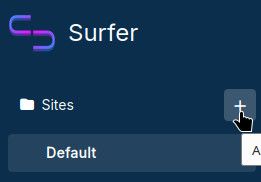
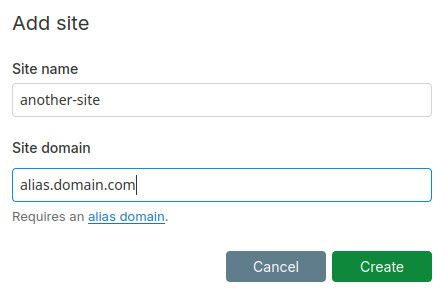
If an alias has no "site" mapping, it falls back to Default site
-
As a follow up, you can also have multiple sites now.
If an alias has no "site" mapping, it falls back to Default site
@girish works nicely, thank you.
I have 28 separate surfer apps, but it's mental clutter.
I think I can consolidate ~25 simple 1-page sites under one Surfer installation.Indie app dev, scratching my itches : communityapps.appx.uk, portfolio at myca.appx.uk
-
@girish works nicely, thank you.
I have 28 separate surfer apps, but it's mental clutter.
I think I can consolidate ~25 simple 1-page sites under one Surfer installation.I think I can consolidate ~25 simple 1-page sites under one Surfer installation.
Documenting how you go about doing that into a how to guide for the docs would be a nice touch
-
Hopefully it's obvious to use. You just click '+', add a site. nothing else really

But also, one "catch" is that the settings are global and not per site. I would like to keep it this way to not complicate the app too much. So you might need multiple instances for each style of setting.
-
I think @jdaviescoates means how to do it with existing sites, not how to click for new ones.
-
I think @jdaviescoates means how to do it with existing sites, not how to click for new ones.
I think @jdaviescoates means how to do it with existing sites, not how to click for new ones.
Exactly. The process of migrating lots of different instances of Surfer into one with lots of Sites instead.
-
Manual way to migrate a website from a standalone Surfer app deployment into a Site in a single Surfer deployment servicing multiple Sites as aliases :
- for the purposes of this summary, the standalone Surfer deployment is
dolphin.domain.tld - for the purposes of this summary, the 'destination' Surfer deployment hosting multiple aliased sites is
whale.domain.tld - go to File Manager for dolphin.domain.tld (opens /app/data)
- click
...onpublicfolder and Download (to your local device Downloads folder) - close File Manager and go to app dashboard for
dolphin.domain.tld - uninstall
dolphin.domain.tldsurfer app (scary but you have the public folder on your local device) - go to app dashboard for
whale.domain.tld, click Location then add an alias fordolphin.domain.tld, click Save, wait for whale app to reload - go to
https://whale.domain.tld/_adminand log in - click
+next to Sites - add site name ('dolphin') and site domain ('dolphin.domain.tld'), click Create
- screen goes to empty folder for site 'dolphin'
- use
Newto upload files and folders from the original dolphin public folder downloaded to your device - N.B. do NOT upload the
publicfolder itself, upload the contents of the public folder - click
View Siteto check it shows as the original dolphin site. - optionally delete the downloaded folder from local device (or choose to keep it as backup)
This is a manual process but it's not difficult, just repetitive.
I don't think it worth scripting unless you have 50+ sites to be migrated from standalone Surfer deployments to a single Surfer deployment with aliased folder. [I have not made a script, I use the manual process to review and curate, maybe even ditch an old Surfer deployment that is no longer needed.]Indie app dev, scratching my itches : communityapps.appx.uk, portfolio at myca.appx.uk
- for the purposes of this summary, the standalone Surfer deployment is
-
Manual way to migrate a website from a standalone Surfer app deployment into a Site in a single Surfer deployment servicing multiple Sites as aliases :
- for the purposes of this summary, the standalone Surfer deployment is
dolphin.domain.tld - for the purposes of this summary, the 'destination' Surfer deployment hosting multiple aliased sites is
whale.domain.tld - go to File Manager for dolphin.domain.tld (opens /app/data)
- click
...onpublicfolder and Download (to your local device Downloads folder) - close File Manager and go to app dashboard for
dolphin.domain.tld - uninstall
dolphin.domain.tldsurfer app (scary but you have the public folder on your local device) - go to app dashboard for
whale.domain.tld, click Location then add an alias fordolphin.domain.tld, click Save, wait for whale app to reload - go to
https://whale.domain.tld/_adminand log in - click
+next to Sites - add site name ('dolphin') and site domain ('dolphin.domain.tld'), click Create
- screen goes to empty folder for site 'dolphin'
- use
Newto upload files and folders from the original dolphin public folder downloaded to your device - N.B. do NOT upload the
publicfolder itself, upload the contents of the public folder - click
View Siteto check it shows as the original dolphin site. - optionally delete the downloaded folder from local device (or choose to keep it as backup)
This is a manual process but it's not difficult, just repetitive.
I don't think it worth scripting unless you have 50+ sites to be migrated from standalone Surfer deployments to a single Surfer deployment with aliased folder. [I have not made a script, I use the manual process to review and curate, maybe even ditch an old Surfer deployment that is no longer needed.]@timconsidine Nice Tim, thanks for that.
Where do the files end up?
Since you're going through Surfer admin, what does the File Manager dir tree look like?
Editable in FM after or have to keep using /_admin?
- for the purposes of this summary, the standalone Surfer deployment is
-
@timconsidine Nice Tim, thanks for that.
Where do the files end up?
Since you're going through Surfer admin, what does the File Manager dir tree look like?
Editable in FM after or have to keep using /_admin?



Hello! It looks like you're interested in this conversation, but you don't have an account yet.
Getting fed up of having to scroll through the same posts each visit? When you register for an account, you'll always come back to exactly where you were before, and choose to be notified of new replies (either via email, or push notification). You'll also be able to save bookmarks and upvote posts to show your appreciation to other community members.
With your input, this post could be even better 💗
Register Login